
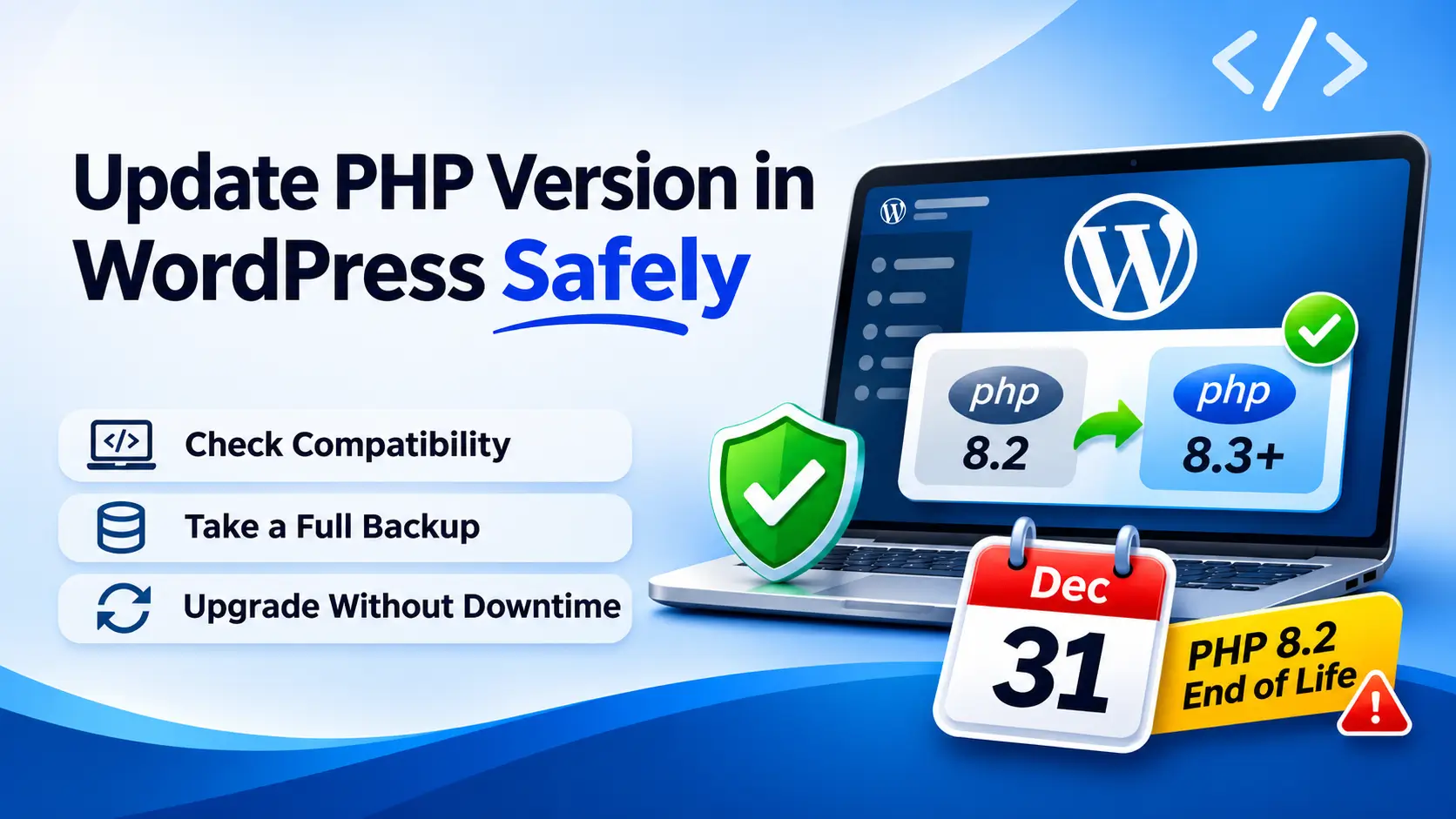
PHP 8.2 stops getting security fixes on December 31, 2026. If your site still runs it, or anything older, now is the time to update PHP version in WordPress, while you still have a few weeks to test and fix whatever breaks.
What You'll Learn
The job itself takes about five minutes in most hosting panels. The preparation takes longer, and it decides whether your site comes back up afterwards. This guide covers both.
Quick answer
Check your version under Tools > Site Health > Info > Server. If it starts with 7, 8.0, 8.1 or 8.2, back up your site, test PHP 8.3 or 8.4 on a staging copy, then switch the live site in your hosting panel. Do it before December 31, 2026.
What happens when PHP 8.2 reaches end of life
Every PHP version gets two years of bug fixes, then two years of security fixes only. After that, the PHP project stops patching it completely. Your site keeps working on December 31. It just stops receiving fixes, so the next security hole found in PHP 8.2 stays open on your server.
In October 2026, the PHP2Shell vulnerability let attackers run code on unpatched servers, and PHP 8.1 sites got no official fix because 8.1 had already reached end of life.
| PHP version | Bug fixes until | Security fixes until | Status today |
|---|---|---|---|
| 8.5 | Dec 31, 2027 | Dec 31, 2029 | Fully supported |
| 8.4 | Dec 31, 2026 | Dec 31, 2028 | Fully supported |
| 8.3 | Ended | Dec 31, 2027 | Security fixes only |
| 8.2 | Ended | Dec 31, 2026 | Last weeks of support |
| 8.1 and older | Ended | Ended | No fixes at all |
A lot of sites are affected. In September 2026, about 62% of WordPress sites reporting to WordPress.org ran PHP 8.2 or older, according to an analysis of WordPress.org’s own statistics.
Some hosts move faster than the official date. WP Cloud, for example, removes PHP 8.2 on December 15, 2026. Check your host’s announcements so the change doesn’t catch you by surprise.
Which PHP version should you choose?
Before you update PHP version in WordPress, decide where you’re going. WordPress 7.1 is fully compatible with every version from PHP 7.4 to 8.5. WordPress.org recommends PHP 8.3 or newer, and its hosting handbook suggests 8.4 or 8.5 for new installs. Whether you can move up depends on your plugins and theme.
| Version | Choose it if | Supported until |
|---|---|---|
| PHP 8.4 | You want the best balance. Most maintained plugins support it, and it gives you two years before the next forced upgrade. | Dec 2028 |
| PHP 8.3 | An important plugin doesn’t support 8.4 yet. It buys you a year, not more. | Dec 2027 |
| PHP 8.5 | Your site is small, your plugins are all current, and you want the longest runway. | Dec 2029 |
Our recommendation for most business sites is PHP 8.4. Moving to 8.3 now means doing this whole exercise again next December.
Newer PHP versions also tend to run WordPress faster. If speed matters to you, our guide to PHP performance optimization goes deeper.
How to check your current PHP version
The first step to update PHP version in WordPress is knowing where to start. In your WordPress dashboard, go to Tools > Site Health > Info and open the Server section. The line called “PHP version” shows what your site runs right now.
You can also see it in your hosting panel. In cPanel, open MultiPHP Manager or Select PHP Version. In Hostinger’s hPanel, open PHP Configuration for your website.
For developers: running
php -vover SSH shows the command line PHP version, which is often different from the version your web server uses. Trust Site Health, or check the response headers of a live page.
What to do based on your current version
How urgently you need to update PHP version in WordPress depends on where you are now:
| Your version | What to do | Urgency |
|---|---|---|
| 7.4 or 8.0 | Update WordPress, plugins, and theme first, then move to 8.3 or 8.4 on staging. Expect a few plugins to need replacing. | Urgent, no fixes since 2022 and 2023 |
| 8.1 | Move to 8.4 on staging, then live. | Urgent, no fixes since December 2025 |
| 8.2 | Move to 8.4 before December 31, 2026. | High, a few weeks left |
| 8.3 | Plan a move to 8.4 during 2027. | Low |
| 8.4 or 8.5 | Nothing to do. Keep patch updates on. | None |
If you’re on 7.4 or 8.0, don’t jump straight to 8.5. Going up several versions at once surfaces every compatibility problem in one go, which makes it hard to tell which plugin caused what.
Before you update: a six-step checklist
Most failed attempts to update PHP version in WordPress come from skipping one of these steps. WordPress core rarely breaks on a newer PHP version. Old plugins, old themes, and custom code do.
- Take a full backup. Back up both files and the database, and download a copy somewhere other than your server. Check that you can actually restore it.
- Update everything on your current PHP version. Update WordPress core, every plugin, and your theme first. Many plugins have already fixed their PHP 8.4 problems, and you want those fixes in place before you switch.
- Find plugins nobody maintains anymore. On each plugin’s WordPress.org page, look at “Last updated” and “Requires PHP”. A plugin untouched for two years is your most likely source of errors. Replace it now.
- Create a staging copy. Most good hosts offer one-click staging. If yours doesn’t, a plugin like WP Staging creates one inside your account.
- Switch staging to the new PHP version and test. Use the steps in the next section, but on the staging site only.
- Pick a quiet time for the live switch. Avoid your busiest sales hours, and don’t combine it with the WordPress 7.2 update scheduled for December 8. Change one thing at a time.
How to update PHP version in WordPress at your host
PHP runs on your hosting server, not inside WordPress. That’s why updating WordPress or your plugins never changes it. You change it in your hosting account, or you ask your host to.
cPanel hosting (many US and European hosts)
- Log in to cPanel and open MultiPHP Manager. Some hosts call it Select PHP Version instead.
- Tick your domain, choose the new PHP version from the dropdown, and click Apply.
- If your host uses Select PHP Version, open the Extensions tab afterwards and make sure the modules your site needs are still ticked. Our guide on enabling PHP modules in cPanel shows how. On a server you manage yourself, see PHP modules in WHM.
Hostinger hPanel
Open Websites, choose your site, then go to Advanced > PHP Configuration. Pick the version, click Update and confirm.
Popular US hosts
| Host | Where to find the PHP setting |
|---|---|
| SiteGround | Site Tools > Devs > PHP Manager |
| Bluehost | Your website’s settings in the Bluehost dashboard, under PHP Version |
| GoDaddy | cPanel (Linux hosting) or the site’s settings (Managed WordPress) |
| WP Engine | User Portal > your environment > PHP version |
| Kinsta | MyKinsta > your site > Tools > PHP engine |
Hosts rename these menus from time to time. If you can’t find the setting, search your host’s help center for “PHP version”.
Popular European hosts
- IONOS: log in, open Menu > Hosting, then the PHP settings page. Click your domain and choose the new version. On IONOS Managed WordPress, IONOS sets PHP for you, so you can’t change it yourself.
- STRATO: in the customer login, choose your hosting package and open the PHP version settings.
- OVHcloud: change PHP in your web hosting configuration in the Control Panel, or set it
app.engine.versionin the.ovhconfigfile at the root of your hosting.
Check your invoice if you host in Europe. IONOS, STRATO and several other European hosts keep old PHP versions running for a monthly “PHP Extended Support” fee. IONOS charges $7.81 a month for PHP 8.1, for example.
STRATO says its paid support for newer versions starts shortly after the official end of life, so a site left on 8.2 may start costing extra in 2027. Updating removes the fee.
If you can’t update PHP version in WordPress yourself, or aren’t sure which panel you have, send your host this message:
“Please confirm which PHP version my site runs, and switch it to PHP 8.4. If that isn’t possible, tell me which supported versions you offer and whether a staging copy is available for testing first.”
What to test after the switch
After you update PHP version in WordPress, open your site in a private browser window, so you see what visitors see rather than a cached admin view. Then go through the pages that make you money or bring you leads:
- Homepage, a few blog posts, and your main service or product pages
- Contact forms, including whether the email actually arrives
- Checkout, payment and order emails if you run WooCommerce
- Logging in, editing a post and saving it in the WordPress admin
- Site Health, which flags anything new that’s wrong
Then check your error log the next day. Problems in scheduled tasks, like backups and imports, often show up only after they run overnight.
Common errors after you update PHP version in WordPress
| What you see | Likely cause | Fix |
|---|---|---|
| “There has been a critical error on this website” | A plugin or theme uses code the new PHP version doesn’t allow | WordPress emails the admin a link to recovery mode. Use it to find and deactivate the plugin, or rename its folder over FTP. |
| Blank white page or HTTP 500 | A fatal PHP error, often from a theme or an old plugin | Check the error log for the file name. Our guide to the HTTP 500 error walks through it. |
“Call to undefined function” (for example create_function or each) | An abandoned plugin using functions removed in PHP 8 | Replace the plugin. Its developer isn’t going to fix it. |
| “Deprecated: Creation of dynamic property” or “Passing null to parameter” | Older code that still works but triggers warnings in PHP 8.1 and later | Make sure warnings aren’t shown to visitors, and update the plugin when a fix comes out. |
| Images not resizing, or a “missing extension” message | The new PHP version doesn’t have the same modules enabled | Enable the missing extension, such as imagick, intl, or zip, in your hosting panel. |
| “Allowed memory size exhausted” | The new version has a lower memory limit set | Increase the WordPress memory limit to 256M. |
If your site shows strange redirects or new admin users after an update, that isn’t a PHP problem. Follow our WordPress malware removal guide.
How to roll back if something breaks
If you update PHP version in WordPress and something breaks, go back to the same PHP setting in your hosting panel and choose your previous version. The change takes effect within a minute or two on most hosts, and your content is unaffected because PHP doesn’t store any of it.
A rollback only buys time. Find the plugin that broke, replace or update it on staging, and try again well before December 31.
Running a custom PHP website instead?
If your site isn’t built on WordPress, the end of PHP 8.2 still applies. The work is different, though. Instead of checking plugins, you check your own code, Composer packages, and framework version, such as Laravel, CodeIgniter, or Symfony, against what changed in PHP 8.3 and 8.4. We cover that in a separate guide for custom PHP sites.
Rather not risk it on a live site?
PhpYouth handles PHP upgrades for WordPress and custom PHP sites: backup, staging test, plugin fixes, and the live switch. If something breaks, we fix it.
Frequently asked questions
How do I update PHP version in WordPress?
To update PHP version in WordPress, open the PHP settings in your hosting panel, such as MultiPHP Manager in cPanel, and choose the new version. Back up and test on a staging copy first.
Does updating WordPress update my PHP version?
No. PHP runs on your hosting server, so you change it in your hosting account or ask your host to. Updating WordPress, plugins, or themes never changes the PHP version.
Which PHP version is best for WordPress in 2026?
PHP 8.4 is the best choice for most sites. It has security support until December 2028, and WordPress 7.1 is fully compatible with it. Use 8.3 only if an important plugin doesn’t support 8.4 yet.
Will updating PHP break my WordPress site?
It can, usually because of an outdated plugin or theme rather than WordPress itself. Back up first, test on a staging copy, and replace plugins that haven’t been updated in years.
What happens if I stay on PHP 8.2 after December 31, 2026?
Your site keeps working, but PHP stops getting security fixes. Any vulnerability found after that date stays open, and some hosts start charging for extended support or remove old versions entirely.
How long does a PHP update take?
The switch itself takes a few minutes. Preparation and testing usually take one to three hours for a typical business site, longer if old plugins need replacing.
Can I go back to my old PHP version?
Yes. Choose the previous version in the same hosting setting. Use it as a temporary measure while you fix the plugin that caused the problem.
Sources: PHP supported versions, WordPress 7.1 server compatibility, Xictron PHP 8.2 analysis, WP Cloud PHP 8.2 removal, IONOS PHP Extended Support, STRATO PHP Extended Support.
Discover more from Master WordPress with Free Tutorials & Guides
Subscribe to get the latest posts sent to your email.
1 thought on “How to Update the PHP Version in WordPress Before PHP 8.2 Ends”
Pingback: Breaking: PHP2Shell PHP Security Vulnerability Under Attack