
Quick answer: To enable PHP modules in WHM, go to EasyApache 4, click Customize on your active profile, search for the module under the PHP Extensions tab, select it, and click Provision. WHM rebuilds PHP with the new module included, and it becomes available across every account on the server.
What You'll Learn
WHM controls PHP at the server level, not per-account like cPanel’s Select PHP Version. That’s the key difference to understand before you start: enabling a module in WHM makes it available server-wide, which is exactly what you want if multiple sites need it, but it also means the process takes a few minutes to rebuild rather than applying instantly. Once you understand that, the steps to enable PHP modules in WHM are straightforward.
Before You Start: Confirm You’re in the Right Place
If you only manage a single cPanel account and don’t have WHM (root) access, you want our cPanel guide instead, since Select PHP Version handles the same job at the account level. WHM is for server administrators and resellers managing PHP across multiple accounts.
How to Enable PHP Modules in WHM via EasyApache 4
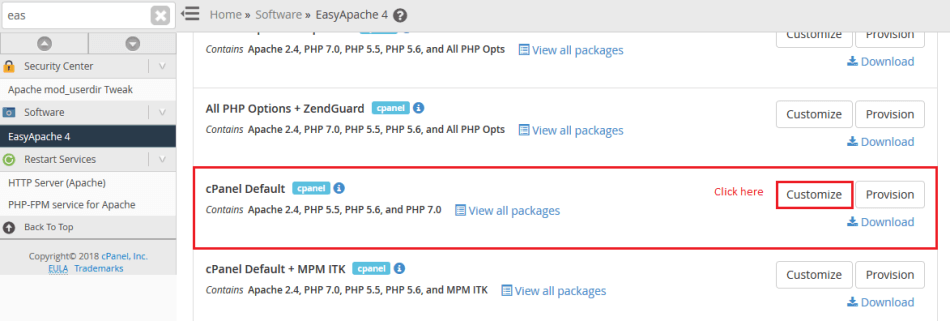
- Log in to WHM and search for EasyApache 4 in the search bar, or find it under Software. The official EasyApache 4 documentation covers every option in detail if you want the full reference.
- Locate your active PHP profile (the one currently in use on the server) and click Customize.
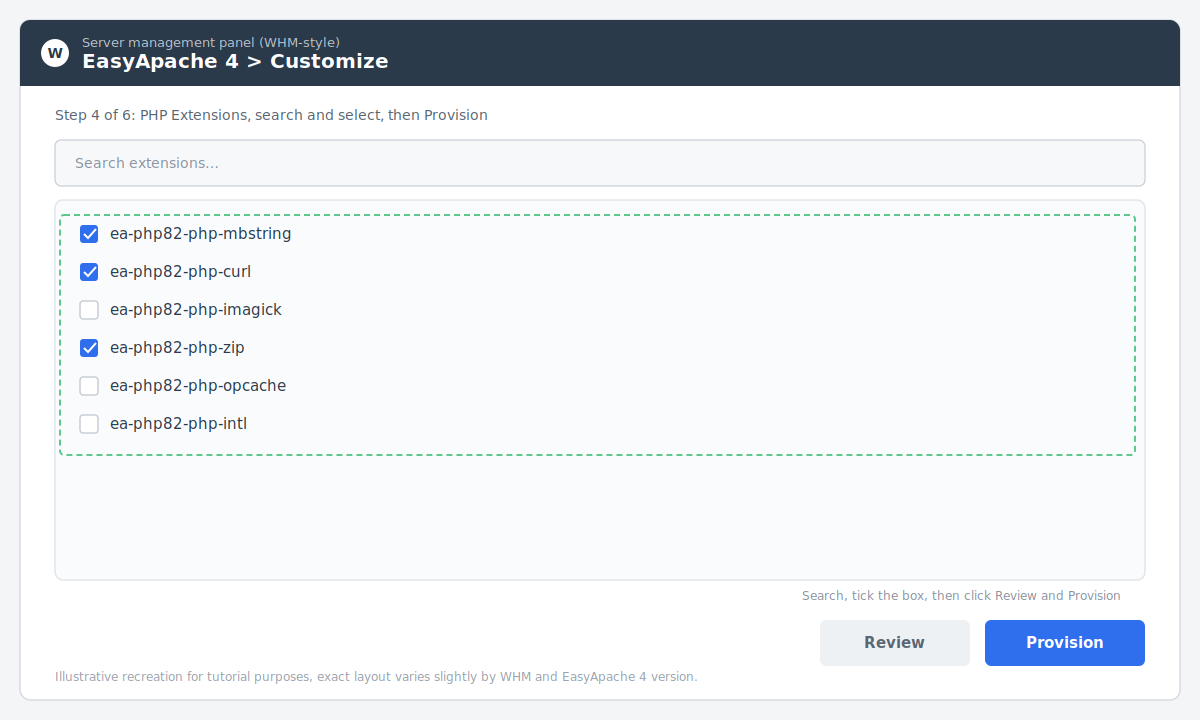
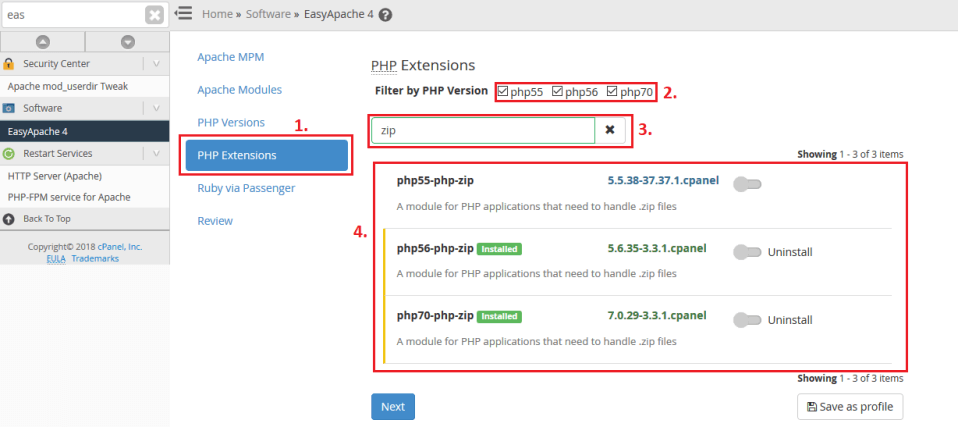
- Click through to the PHP Extensions step. You’ll see a searchable list covering every extension available for your PHP version.
- Use the search box to find the module you need. Select its checkbox.
- Click Review, confirm the summary of changes looks correct, then click Provision.
- WHM rebuilds PHP with the module included. This typically takes one to three minutes depending on server load.
Because this rebuilds PHP itself, it applies to every cPanel account on the server using that PHP version, not just one site.
Enabling Modules for a Specific PHP Version Only
If your server runs multiple PHP versions side by side, EasyApache 4 lets you customize each one independently. From the EasyApache 4 home screen, each installed PHP version has its own Customize button, so a module enabled for PHP 8.2 won’t automatically apply to PHP 7.4 on the same server. Repeat the steps above for each version that needs the module.
Common PHP Modules and Why Servers Need Them
- mbstring, required by WordPress and most modern PHP applications for correct character handling.
- imagick or gd, image processing for WooCommerce, galleries, and media-heavy sites.
- zip, needed for plugin, theme, and core updates to install correctly.
- opcache, improves PHP execution speed sitewide once enabled and configured. See our PHP performance optimization guide for the settings that matter most.
- intl, powers multilingual date and currency formatting.
- redis or memcached, needed if any hosted site uses object caching.
How to Verify the Module Is Active
- SSH into the server and run
php -mto list every loaded module for the CLI PHP binary. - For a specific website, create a temporary
info.phpfile with<?php phpinfo();, load it in a browser, and search for the module name. Remove the file afterward. - Check WHM > EasyApache 4 > Customize > PHP Extensions again. If the module’s checkbox is ticked, it provisioned successfully.
Common Issues When Enabling PHP Modules in WHM
If you’ve followed the steps to enable PHP modules in WHM and still hit an error, check these first.
- Provisioning fails or times out. This is usually a server resource issue during the rebuild. Retry during lower traffic, or check WHM’s build log for the specific error.
- Module works on one account but not another. Confirm both accounts are actually running the same PHP version. Different accounts on the same server can run different PHP versions independently.
- Module isn’t in the EasyApache 4 list at all. Some niche extensions need to be compiled manually via SSH rather than through the WHM interface. This is a job for your hosting provider or a server administrator if you’re not comfortable on the command line.
Video Walkthrough: Enable the PHP Zip Module in WHM
Frequently Asked Questions
Does enabling a PHP module in WHM affect every account on the server?
Yes, if the module is enabled for a specific PHP version, every cPanel account running that version gets access to it. This is different from cPanel’s Select PHP Version, which only affects a single account.
How long does EasyApache 4 take to rebuild PHP?
Usually one to three minutes, though it can take longer on a busy server or when multiple PHP versions are involved. Avoid running it during peak traffic hours if possible.
Can I enable a PHP module for just one website instead of the whole server?
Not through EasyApache 4 directly, since that operates at the PHP version level, not the account level. For per-account control, use cPanel’s Select PHP Version inside that specific account instead.
What if a module isn’t available in EasyApache 4 at all?
Some extensions need to be compiled from source via SSH. This requires root access and server administration experience, so it’s usually best handled by your hosting provider.
Need Help With Server-Level PHP Configuration?
If you’re managing PHP across multiple accounts and need it configured correctly for performance and stability, PHP Youth’s team handles WHM and server administration, PHP tuning, and full-stack WordPress development for agencies and businesses worldwide. Contact PHP Youth for hands-on support.
Once your modules are enabled, our PHP performance optimization guide covers how to tune OPcache, PHP-FPM, and object caching for real traffic. Managing a single account instead of the whole server? See our guide to enabling PHP extensions in cPanel.
Discover more from Master WordPress with Free Tutorials & Guides
Subscribe to get the latest posts sent to your email.

3 thoughts on “How to Enable PHP Modules in WHM (Complete Guide)”
HI,
Really helpful Thanks.
Can you do a blog in Cpanel also: How to Enable PHP Modules in Cpanel
Thanks again
cheers !!!!
Hello Soshiv,
As per your request, we have published the blog post How to Enable PHP Extensions through cPanel, Please go through it
Thanks
Pingback: PHP Performance Optimization: 7 Proven Fixes for High-Traffic Sites