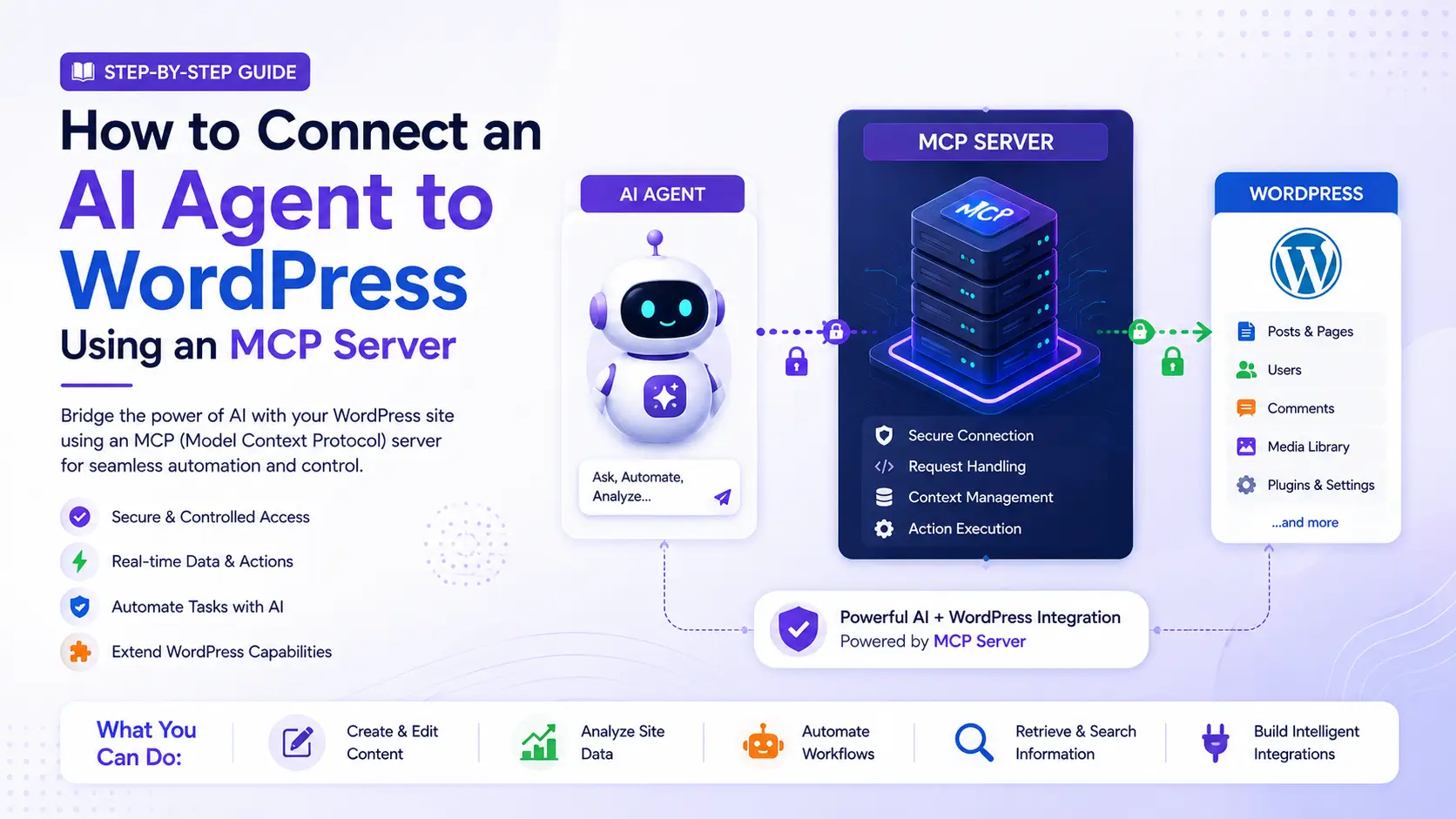
If you have tried to get ChatGPT or Claude to actually do something inside your WordPress site, rather than just talk about it, you have probably hit a wall. A WordPress MCP server is what closes that gap.
What You'll Learn
It gives an AI agent a defined, permissioned way to read your posts, update content, manage plugins, or pull site data, instead of guessing through screenshots or copy-pasted admin instructions. A properly configured WordPress MCP server replaces one-off REST API scripts with a single, reusable connection point.
We run an MCP connector on our own WordPress installs at PHP Youth, so this is not theory. Below is the exact process for setting one up, the permissions you need to lock down first, and the failure points that trip up most first attempts.
What Is an MCP Server, and Why Does WordPress Need One?
MCP (Model Context Protocol) is an open standard that lets an AI agent call a defined set of “tools” on an external system through a single, structured connection.
For WordPress, an MCP server exposes actions like creating a post, updating an option, or querying WooCommerce orders as callable tools. The AI agent executes them directly instead of relying on raw REST API calls or manual copy-pasting.
Without MCP, connecting an AI tool to WordPress usually means writing custom REST API glue code for every single action. MCP standardizes that layer once, so any MCP-compatible agent (Claude, a custom agent, or an internal automation) can use the same tool set.
What You Can Actually Do Once an Agent Is Connected
Once the connection is live, a properly scoped AI agent can:
- Draft and publish posts directly from a content brief, including categories and tags
- Audit on-page SEO across your published posts and flag missing meta descriptions or thin content
- Manage WooCommerce data, such as checking stock levels or recent order status
- Update plugin and theme settings that are exposed through the REST API
- Pull site health and performance data to feed into a report without manual export
Step-by-Step: Setting Up Your WordPress MCP Server
Step 1: Install the Official MCP Adapter
If you are on WordPress 6.9 or newer, the Abilities API ships in core, and the WordPress MCP Adapter plugin is the official, actively maintained way to turn that into a working WordPress MCP server. It is part of the WordPress AI Building Blocks initiative and replaces earlier community plugins that are now deprecated. Install it via WP-CLI:
wp plugin install https://github.com/WordPress/mcp-adapter/releases/latest/download/mcp-adapter.zip --activateOr download the latest release manually and upload it through Plugins > Add Plugin > Upload Plugin. Once active, it registers a default MCP server and exposes any ability marked public through three built-in tools: discovering abilities, inspecting one, and executing it.
Not every WordPress action is available out of the box. Abilities have to be explicitly registered and marked meta.mcp.public before an AI agent can reach them, which is exactly the kind of granular control a WordPress MCP server is built around.
For a wider view of where this fits alongside the rest of your WordPress stack, our guide to web technologies for WordPress developers covers the Abilities API and MCP in more depth. Our roundup of AI tools for WordPress is a useful next stop if you are building a broader AI-assisted workflow, not just this one connection.
Step 2: Create a Scoped Application Password
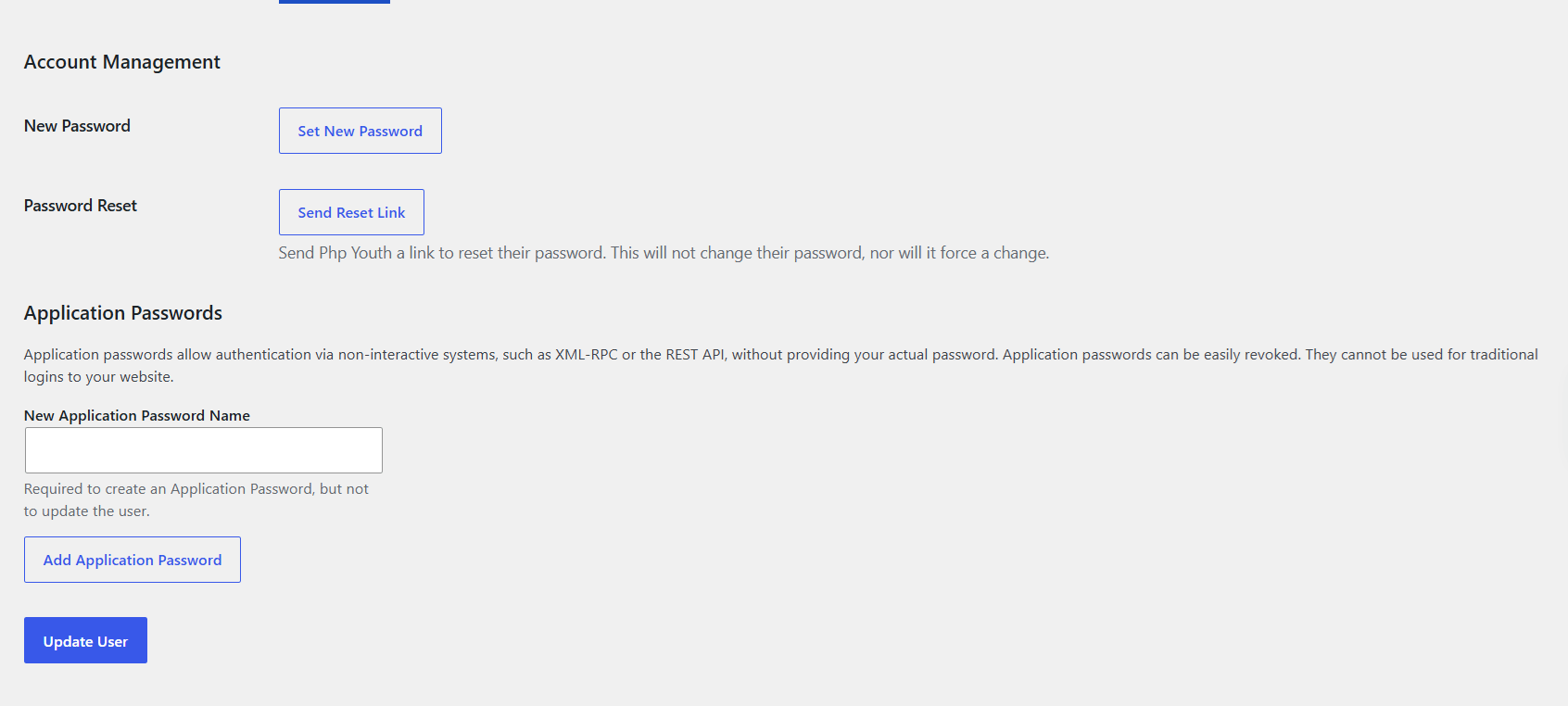
Never connect an AI agent using your main admin login. Instead, create a dedicated user with only the role it needs (usually Editor, not Administrator), then generate an application password under that user’s profile in Users > Profile > Application Passwords. This gives you a revocable, single-purpose credential.
Why this matters: application passwords can be revoked individually without changing your main login. If an agent misbehaves or a key leaks, you kill that one credential and nothing else is affected.
Step 3: Confirm the MCP Endpoint Is Reachable
The MCP Adapter’s default server sits at:
https://yourdomain.com/wp-json/mcp/mcp-adapter-default-serverFor local WordPress development, you can skip HTTP entirely and check the server straight through WP-CLI:
wp mcp-adapter listFor a live site, a plain browser or curl request to that URL will not return a friendly tool list. MCP servers speak JSON-RPC over this endpoint, not simple REST, so an unauthenticated GET request should return a 200 or a structured error rather than a 404. That confirms the route is registered.
Real confirmation that tools are working comes from connecting an actual client and checking its tool count, covered in the next step.
If you get a 401 or 403 instead, the application password or user role is the first thing to check, followed by any security plugin (see our comparison of WordPress security plugins if you need to adjust firewall rules) that might be blocking REST API requests.
Step 4: Connect Your AI Agent
The configuration format is nearly identical across every major MCP-compatible client. You add a JSON block naming your server, the command to run it, and either a local path or a remote URL with your application password. Here is what that looks like in each one.
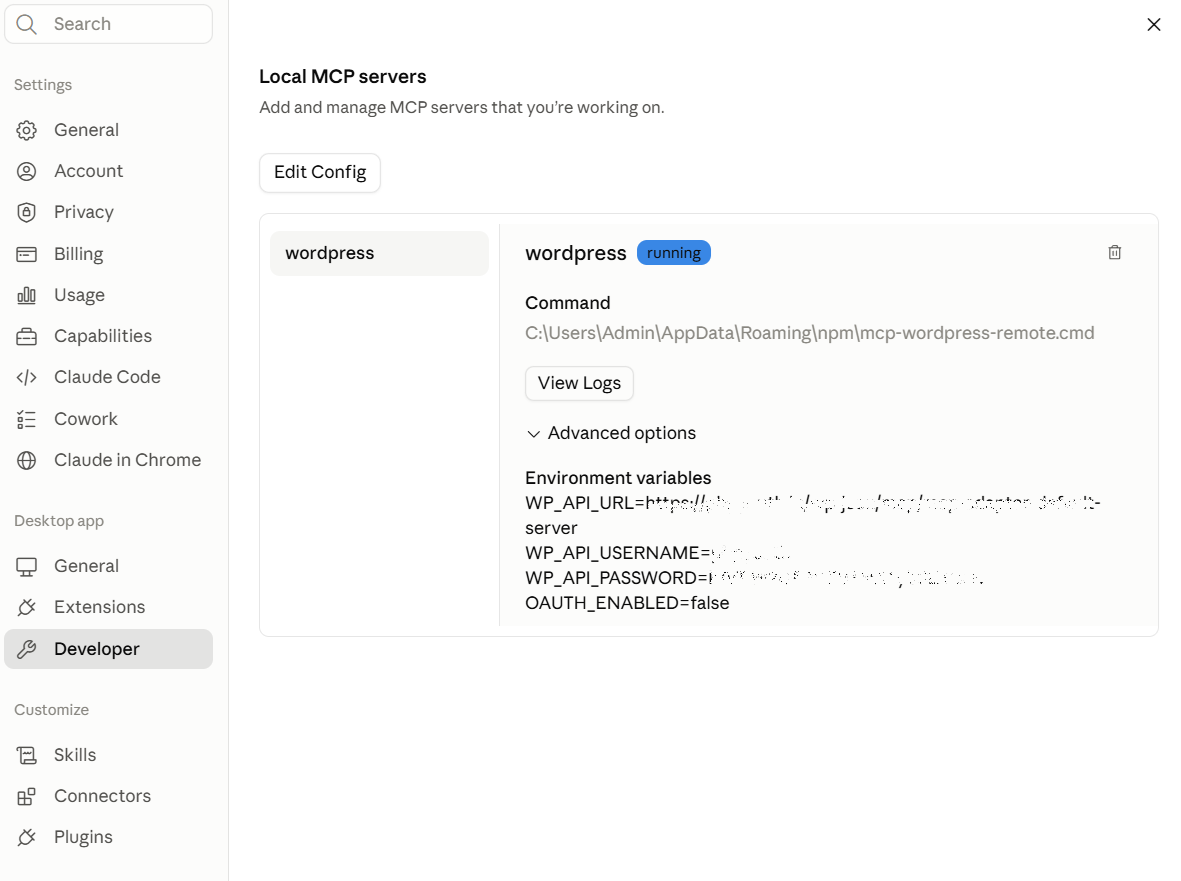
Claude Desktop: go to Settings > Developer, find Local MCP servers, and click Edit config. This opens claude_desktop_config.json, where you add your WordPress server under an mcpServers object with the endpoint URL and your application password credentials. Restart Claude Desktop afterward, since it only reads this file on startup.
Cursor: go to Cursor > Settings > Cursor Settings, open the Tools and MCP section, and click Add Custom MCP. This opens the same kind of config file, using the identical mcpServers format as Claude Desktop.
Claude Code: add the same mcpServers block to a .claude.json file in your home directory for a global connection, or to a .mcp.json file inside a project directory to scope it to one codebase.
VS Code: create an mcp.json file inside a .vscode directory in your project workspace. The main difference is the wrapping key: VS Code uses servers instead of mcpServers. Once saved, VS Code shows an MCP control toolbar where you can start, stop, and restart the connection.
ChatGPT: the path is different since ChatGPT connects to remote MCP servers through its plugin system rather than a local config file. Go to Settings > Security and login, turn on Developer mode, then go to ChatGPT Plugins, select the plus button, and connect your server URL there.
ChatGPT also requires manual confirmation before running any write action, on top of whatever role and password scoping you already set up on the WordPress side.
For a custom agent built on the Anthropic API, you pass the MCP server as a parameter in your API call instead, alongside your normal messages payload.
The official WordPress Developer Blog walkthrough of the MCP Adapter has the exact JSON for each client side by side if you get stuck. The MCP Adapter GitHub repository has the full technical reference for custom server setups.
Step 5: Test With a Low-Risk Task First
Before letting an agent touch live content, run something reversible. Ask it to draft a post as a draft, not publish it. Ask it to read data before you let it write anything. This single habit catches most permission and mapping errors before they touch a production page.
Security Considerations Before You Give an AI Agent Write Access
- Use the least-privileged role possible. Editor, not Administrator, for content tasks.
- Rotate application passwords on a schedule, the same way you would rotate an API key.
- Test on staging first. Never connect an agent to a production site for its first run.
- Keep an activity log. Most MCP adapters log tool calls; review this weekly while you build trust in the setup.
- Disable tools you are not using. If the agent does not need WooCommerce order access, do not expose that tool.
Common WordPress MCP Server Problems and Fixes
| Problem | Likely Cause | Fix |
|---|---|---|
| 401/403 on the MCP endpoint | Wrong role or expired application password | Regenerate the password and confirm the user role has REST API access |
| Empty tool list | Adapter plugin not fully activated or a caching plugin serving a stale response | Clear the cache and re-check plugin status; bypass LiteSpeed or similar caching for the endpoint |
| Agent calls the wrong tool | Ambiguous or overlapping tool names in the adapter config | Rename or disable duplicate tools so each maps to one clear action |
| Security plugin blocks requests | Firewall rules treating REST API calls as suspicious traffic | Add an explicit allow rule for the MCP endpoint path |
Is a WordPress MCP Server Worth Setting Up for Your Site?
For a small brochure site, probably not yet. The setup overhead outweighs the benefit if you publish twice a month. For an active content operation, a WooCommerce store, or an agency managing several client sites, an MCP connection removes a meaningful chunk of repetitive admin work: content audits, publishing pipelines, and data pulls that otherwise eat hours every week.
Frequently Asked Questions
What is a WordPress MCP server?
A WordPress MCP server is a plugin-based endpoint that exposes WordPress actions, such as creating posts or reading site data, as structured tools an AI agent can call directly, rather than requiring custom REST API code for each action.
Is connecting an AI agent to WordPress safe?
It is safe when set up with a dedicated, least-privileged user account and a revocable application password, tested on staging before any production use, and reviewed through activity logs.
Do I need to know how to code to set this up?
Basic comfort with WP-CLI or the WordPress admin dashboard is enough for the plugin installation and permission setup. Custom tool mapping or advanced automation typically benefits from developer support.
Can I connect ChatGPT the same way?
Yes, though the connection path is different. ChatGPT connects through its plugin system in Developer mode rather than a local config file like Claude Desktop, Cursor, or VS Code use. The WordPress side, the adapter plugin, application password, and MCP endpoint, stays exactly the same regardless of which AI agent you connect.
Need This Set Up Properly, Not Just Working?
Getting an MCP server connected is one thing. Scoping it correctly, mapping the right tools, and keeping it secure on a live production site is where most self-managed setups go wrong. PHP Youth builds custom WordPress integrations, AI agent connections, performance optimization, and full-stack development for businesses and agencies worldwide.
Talk to Our Team About Your Setup →
Discover more from Master WordPress with Free Tutorials & Guides
Subscribe to get the latest posts sent to your email.