
Want to manage your form submissions in one place? You can connect Gravity Forms with Google Sheets to automatically send form data to a spreadsheet. This helps you organize leads, track enquiries, manage registrations, and reduce manual data entry.
What You'll Learn
Instead of copying every form submission into a spreadsheet, you can create an integration that transfers the information for you. In this guide, you’ll learn how to connect Gravity Forms to Google Sheets, choose the right integration method, and troubleshoot common issues.
Why Connect Gravity Forms with Google Sheets?
Gravity Forms collects information through WordPress forms. Google Sheets helps you organize, filter, analyze, and share that information.
Connecting these tools can make everyday tasks easier.
- Automatic Data Collection: Send form submissions to a spreadsheet without manual copying.
- Better Lead Management: Keep contact details and enquiries organized.
- Easy Collaboration: Share spreadsheet access with your team.
- Faster Reporting: Use filters, formulas, and charts to review submissions.
- Improved Organization: Manage registrations, applications, feedback, and customer enquiries in one place.
For example, if your website receives 50 contact form submissions daily, an integration can help transfer those entries into a Google Sheet automatically.
How to Connect Gravity Forms with Google Sheets
There are several ways to connect Gravity Forms with Google Sheets. Your best option depends on your budget, required features, and preferred setup.
Common options include:
- A dedicated Google Sheets integration or add-on.
- Zapier automation.
- A third-party connector plugin.
- A custom API integration.
For most users, a dedicated connector or an automation tool is easier than building a custom API integration.
Method 1: Connect Gravity Forms with Google Sheets Using an Add-On
A Google Sheets add-on can send form entries directly to a spreadsheet. Some integrations also support updating existing rows or syncing changes.
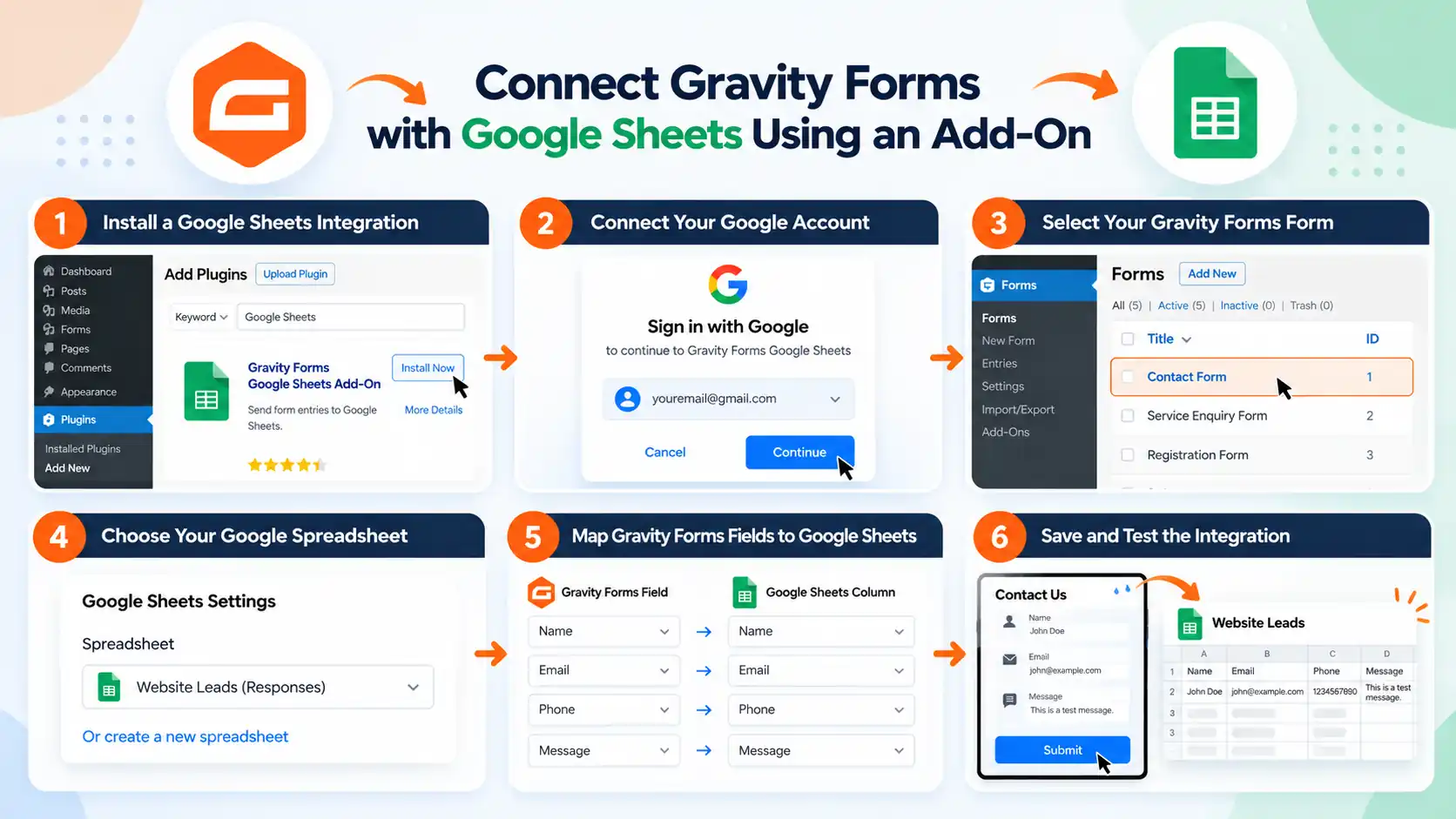
One option is the Google Sheets add-on available through Gravity Labs. It supports sending Gravity Forms submission data to Google Sheets. However, check its experimental status, current compatibility, and setup requirements before using it on a production website. Third-party connectors are also available.
If you haven’t purchased Gravity Forms yet, you can get Gravity Forms here before setting up your integration.
Step 1: Install a Google Sheets Integration
First, choose an integration that supports your Gravity Forms setup.
- Review the plugin’s features, pricing, compatibility, and support.
- Install the selected add-on according to its documentation.
- Activate it from your WordPress dashboard.
- Confirm that the integration settings are available.
Important: Different add-ons have different setup requirements. Some may require Google Cloud credentials, while others offer a simpler connection process.
Step 2: Connect Your Google Account
Open the Google Sheets integration settings in your WordPress dashboard.
Depending on your selected add-on:
- Navigate to its settings page.
- Click the Google connection or authentication option.
- Sign in to your Google account.
- Review and approve the requested permissions.
- Return to WordPress and confirm the connection.
Use a Google account that has access to the spreadsheet you want to connect.
Step 3: Select Your Gravity Forms Form
Now choose the form whose submissions you want to send to Google Sheets.
- Open Forms in your WordPress dashboard.
- Select the form you want to connect.
- Open its integration or feed settings.
- Create a new Google Sheets feed, if your add-on uses feeds.
- Enter a name for the connection.
For example, you can name your feed Website Contact Form.
Step 4: Choose Your Google Spreadsheet
Select an existing Google Sheet or create a new spreadsheet, depending on your integration.
Create clear column headings such as:
- Name
- Phone
- Message
- Submission Date
These columns will help keep your form data organized.
Step 5: Map Gravity Forms Fields to Google Sheets
Field mapping tells the integration where each form value should go.
- Gravity Forms Name: Google Sheets Name
- Gravity Forms Email: Google Sheets Email
- Gravity Forms Phone: Google Sheets Phone
- Gravity Forms Message: Google Sheets Message
Check every mapping carefully before saving.
If your form includes conditional fields, file uploads, or complex field types, confirm that your integration supports them.
Step 6: Save and Test the Integration
Save your feed or connection settings.
Next:
- Open your website’s form.
- Submit a test entry using sample information.
- Open your connected Google Sheet.
- Check whether the submission appears correctly.
- Verify that each value is stored in the right column.
Once your test works, your integration is ready to handle submissions according to its configuration.
Method 2: Connect Gravity Forms with Google Sheets Using Zapier
Zapier is another option for connecting Gravity Forms with Google Sheets.
It is useful when you want to connect form submissions with other apps or create multi-step workflows.
If you need advanced form functionality and integrations, you can explore Gravity Forms plans to check which license fits your requirements.
How to Set Up the Zapier Integration
- Install and configure the Gravity Forms Zapier Add-On if your license includes it.
- Sign in to your Zapier account.
- Create a new Zap.
- Choose Gravity Forms as the trigger app.
- Select the new form submission trigger and connect your WordPress site.
- Choose the form you want to monitor.
- Test the trigger using a sample entry.
- Select Google Sheets as the action app.
- Choose the action for creating a new spreadsheet row.
- Connect your Google account and select the spreadsheet.
- Map your Gravity Forms fields to the spreadsheet columns.
- Test the action and publish your Zap.
After activation, new submissions can create rows in your selected spreadsheet.
Note: The Gravity Forms Zapier Add-On is available with Pro, Elite, and Nonprofit licenses. Zapier may also have separate usage limits or paid plans, depending on your workflow requirements.
Which Integration Method Should You Choose?
Your choice depends on what you want to accomplish.
- Dedicated Google Sheets Add-On: Suitable if you mainly want to send form entries directly to spreadsheets.
- Zapier: Useful if you need multi-step automation or want to connect other apps.
- Custom API Integration: Better suited to developers with specific data-processing or integration requirements.
Compare the available features, security controls, costs, and maintenance needs before choosing.
Gravity Forms Pricing for Google Sheets Integration
Before choosing an integration method, consider the cost of your Gravity Forms license and any additional automation tools.
Gravity Forms offers different licenses depending on your website requirements and the add-ons you need.
- Basic: $59/year for 1 site.
- Pro: $159/year for 3 sites.
- Elite: $259/year for unlimited sites.
The Zapier Add-On is included with Pro, Elite, and Nonprofit licenses. A separate Google Sheets connector may have its own pricing or licensing terms.
Pricing and included features may change. Check the official Gravity Forms pricing page before purchasing.
Common Problems When Connecting Gravity Forms with Google Sheets
If your form submissions are not appearing in Google Sheets, check the following issues.
1. Google Account Connection Failed
Reconnect your Google account and review the permissions required by your integration.
If you use Google Cloud credentials, verify the OAuth configuration and redirect URI.
2. Form Entries Are Not Syncing
Check whether your integration feed is active and configured for the correct form and spreadsheet.
Submit a new test entry and review the integration logs, if available.
3. Form Data Appears in the Wrong Columns
Review your field mapping settings. Make sure each Gravity Forms field matches the correct spreadsheet column.
4. Google Sheets Access Issues
Confirm that the connected Google account has permission to edit the selected spreadsheet.
Also check whether the spreadsheet or sheet structure has changed.
5. Duplicate Rows Appear
Review your automation triggers and integration settings. Make sure you have not created multiple active workflows for the same form.
If you need to update existing records rather than add new rows, choose an integration that supports reliable record matching.
Best Practices for Managing Form Data
Before sending live customer data to Google Sheets, follow these recommendations:
- Collect only the information your business actually needs.
- Limit spreadsheet access to authorized team members.
- Review your integration’s data retention and privacy settings.
- Test your workflow before using it on important forms.
- Avoid sharing spreadsheets publicly when they contain personal information.
- Monitor integration errors and failed submissions.
Remember, sending data to a spreadsheet creates another place where information is stored. Make sure your workflow follows your privacy and security requirements.
Frequently Asked Questions
Can Gravity Forms connect directly to Google Sheets?
Yes. You can connect Gravity Forms with Google Sheets using a compatible integration or connector. Zapier is another option for automating form submissions.
Does Gravity Forms have a Google Sheets integration?
Google Sheets integration options are available, including the experimental Gravity Labs add-on and third-party connectors. Check the current availability, licensing, and setup requirements before choosing one.
Can Gravity Forms automatically send form submissions to Google Sheets?
Yes. With a properly configured integration, new form submissions can automatically create spreadsheet rows without manual data entry.
Can I connect multiple Gravity Forms to Google Sheets?
This depends on your chosen integration. Some tools support multiple forms, feeds, or spreadsheets, while others may limit these features by license.
Is Zapier required to connect Gravity Forms with Google Sheets?
No. Zapier is not the only option. You can use a compatible Google Sheets add-on or connector if it meets your requirements.
Is it safe to send Gravity Forms entries to Google Sheets?
It can be appropriate when configured securely. Use trusted integrations, limit access, review permissions, and avoid sending unnecessary sensitive information.
Conclusion
Connecting Gravity Forms with Google Sheets can make form management easier, especially if your website regularly collects leads, enquiries, registrations, or applications.
A dedicated Google Sheets integration is a practical choice if you mainly want to transfer form entries into a spreadsheet. Zapier is worth considering if you need more advanced automation across multiple apps.
Choose the method that fits your workflow, test it with sample submissions, and review your data permissions before going live.
If you are planning to use Gravity Forms for your website, check out Gravity Forms here.
Discover more from Master WordPress with Free Tutorials & Guides
Subscribe to get the latest posts sent to your email.