

Hello, friends, today we will learn how to resolve “This Page isn’t Working HTTP ERROR 500”.
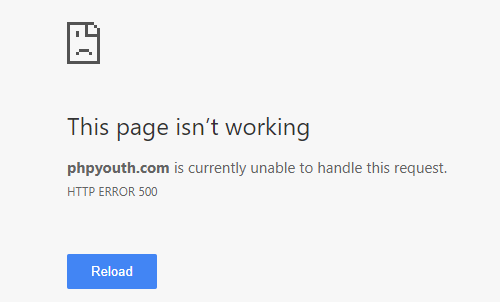
Last week, we got this error while shifting one of my websites from one server to another. However, there’s no need to worry, WordPress has this common error, and we can easily resolve it. What we have to do is to follow these steps:
1. Deactivate all plugins
First, we will try to deactivate all the plugins. Do you know how we can deactivate all plugins at a time? We can do this in both ways, either from the admin panel or from FTP, but we are getting HTTP ERROR, so we can do this only from FTP/cPanel, just rename the plugin directory like this: Plugins. deactivate. Through this, all plugins will get deactivated automatically. Once you deactivate all plugins, HTTP ERROR 500 will not show again, and your site will run, but maybe some fatal errors or a blank(White) page will show. If you get a blank(White) page, then follow step 2; otherwise, go to step 3
2. Enable WP_DEBUG
What we will do in this step is to enable(change to ‘true’) the WordPress Debug in the wp-config.php file of your website in the root directory. I think you all have seen this before:
//define('WP_DEBUG', false);

define('WP_DEBUG', true);
Once you enable WP_DEBUG to true, you will see a Fatal Error that may look like the screenshot below:

If this error occurs on your website, it means that the website’s memory limit has been exhausted, and it needs to be increased to the required amount. Let us see step 3 on how to increase the memory limit.
3. Increase WordPress Memory Limit
We can easily increase your website memory limit through php.ini, .htaccess, wp-config.php, or you can directly contact your host manager. However, here we will increase the memory limit through the wp-config.php file. To do this, simply open your wp-config.php file from the root directory and increase the memory limit.
//define( 'WP_MEMORY_LIMIT', '64M' );

define( 'WP_MEMORY_LIMIT', '512M' );
Once you increase the memory limit, just refresh your website and check if everything is working fine or not. If it is not, please comment on this post.
Troubleshooting Membership Platforms?
If you are running into persistent technical limits while configuring a complex membership platform, it might save you hours to hire a MemberPress developer to audit your server environment.
Next, make sure that you reactivate your website plugins. What to do is first rename your plugins directory(Plugins.deactivate to Plugins), then go to the WordPress admin Panel and activate plugins one by one, and finally, set wp_debug to ‘false‘ as well in the wp-config.php file.
Discover more from Master WordPress with Free Tutorials & Guides
Subscribe to get the latest posts sent to your email.