
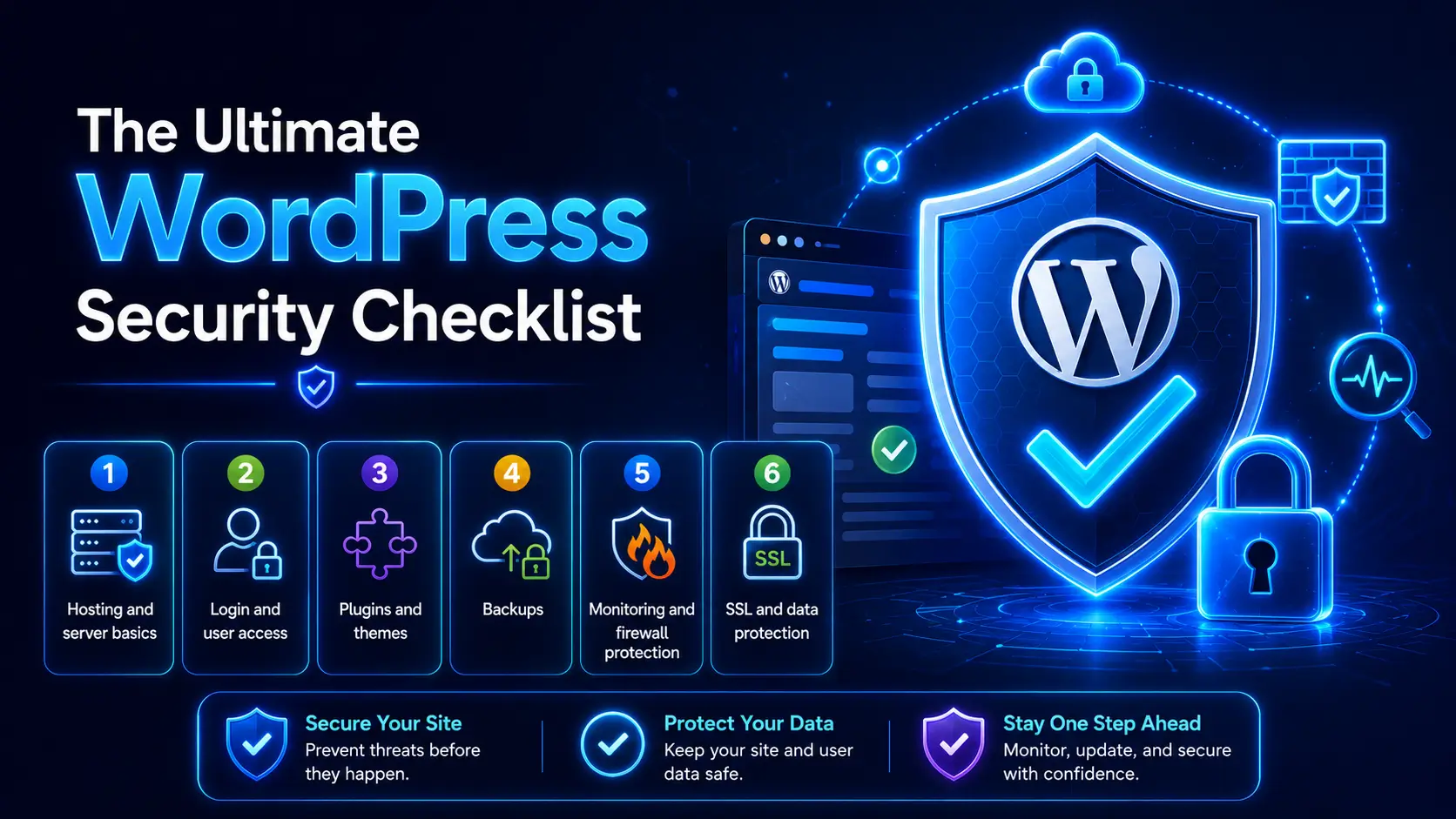
If your WordPress site has never been hacked, it’s not because WordPress is bulletproof. It’s because nobody’s tried yet, or you got lucky. This WordPress security checklist covers every layer that actually stops an attack, in the order you should tackle it, with the reasoning behind each step so you’re not just checking boxes blindly.
What You'll Learn
WordPress powers over 40% of the web, making it the single biggest target for automated attacks online. Most attacks don’t need a skilled hacker behind them. They’re bots scanning millions of sites at once, looking for one outdated plugin or one weak password to slip through.
Quick answer: A secure WordPress site needs strong login protection, updated core files and plugins, a security plugin with a firewall, automated off-site backups, SSL, and hardened file permissions. Skip any one of these and you’ve left a door unlocked, even if every other door is bolted shut.
Why WordPress sites get targeted so often
This isn’t a WordPress-specific weakness. It’s simple math. Attackers build automated tools once and point them at every WordPress site they can find, because the sheer number of installs makes it worth the effort. A vulnerability in a popular plugin can expose hundreds of thousands of sites overnight.
40%+ of all websites run on WordPress
90,000+ attacks happen on WordPress sites every minute, industry-wide
50%+ of hacks trace back to outdated plugins or themes
If you’re still deciding whether WordPress is the right platform to build on in the first place, our is WordPress secure guide breaks down what’s myth and what’s real before you commit.
How most WordPress hacks actually happen
Understanding the attack path makes the checklist below make a lot more sense. Almost every WordPress compromise follows one of these routes:
- Outdated plugins and themes. A vulnerability gets disclosed publicly. Within days, bots are scanning the web for sites still running the old version, and yours is a target the moment you skip an update.
- Weak or reused passwords. Credential-stuffing bots try leaked username and password combinations from other breaches against your login page, hoping you reused one.
- Brute force login attempts. Automated scripts hammer wp-login.php with thousands of guesses per hour if nothing is stopping them.
- Nulled or pirated premium plugins. Cracked versions of paid plugins are one of the most common ways malware gets injected directly into a site’s files before it’s even installed.
- Insecure hosting environments. On shared hosting with poor isolation, a hacked neighbor site can spread malware to yours through shared server resources.
The full WordPress security checklist
Work through each section below once, then revisit the whole list every few months. None of this takes special technical skill. It takes consistency, and this WordPress security checklist is designed to walk you through every layer in order.
1. Hosting and server basics
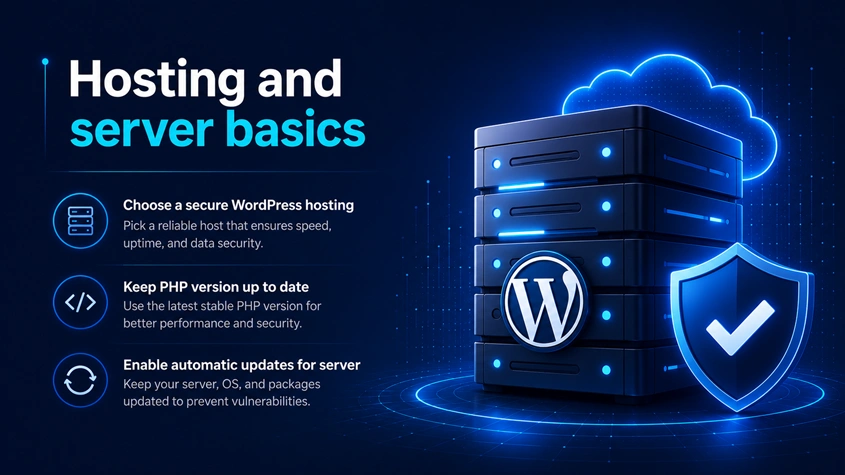
Security starts before you even install a plugin. Cheap shared hosting with outdated server software is one of the most common reasons small WordPress sites get compromised, and it’s the layer most people never think to check.
- Run the latest stable PHP version. Older PHP versions stop receiving security patches, leaving known vulnerabilities open indefinitely.
- Choose a host with isolated hosting environments. Shared file systems where one hacked neighbor site can infect yours are far riskier than containerized or managed setups.
- Confirm your host provides free daily backups as a baseline. This should be a safety net underneath your own backup plugin, not a replacement for it.
- Disable file editing from the dashboard. Add
define('DISALLOW_FILE_EDIT', true);to wp-config.php so a compromised admin account can’t rewrite your theme or plugin files directly from the browser. - Turn off directory browsing. Left on, anyone can view the full file structure of your uploads and plugin folders just by visiting the URL directly.
For the full list of server-level settings WordPress itself recommends, see the official WordPress.org hardening guide.
2. Login and user access
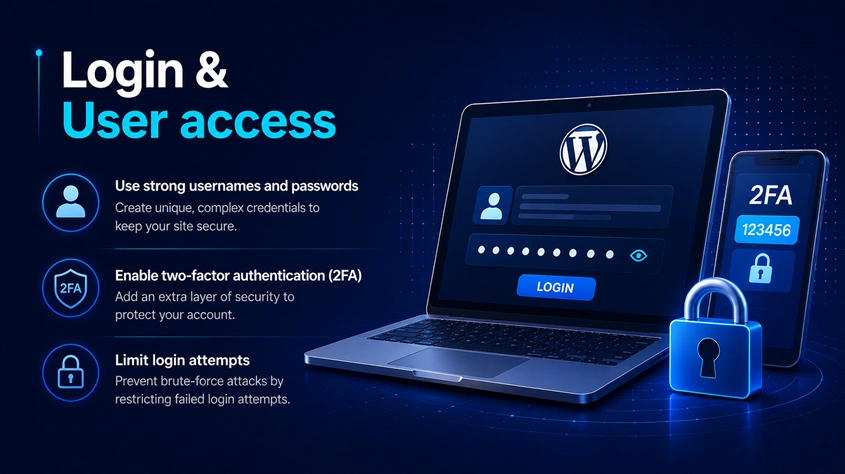
Your login page is the most targeted entrance for brute-force attacks. Implementing 2FA and hiding your default /wp-login.php path stops automated bot traffic in its tracks. Read our step-by-step tutorial on how to secure WordPress login page access for complete code snippets and setup steps.
- Never use “admin” as a username. It’s the first guess in every brute force script, and removing it eliminates half the attack automatically.
- Enforce strong, unique passwords for every account with dashboard access. One weak editor password is just as dangerous as a weak admin password once an attacker is inside.
- Turn on two-factor authentication. Even a stolen password becomes useless without the second factor, and this single step blocks the majority of automated takeover attempts.
- Limit login attempts. Lock out an IP address after five or six failed tries so brute force scripts get shut down before they can cycle through thousands of guesses.
- Assign the minimum role each user actually needs. A content writer doesn’t need admin access, and every extra admin account is another possible way in.
- Review active sessions and log out anything inactive. Old sessions on shared or public computers are an easy, overlooked entry point.
3. Plugins and themes
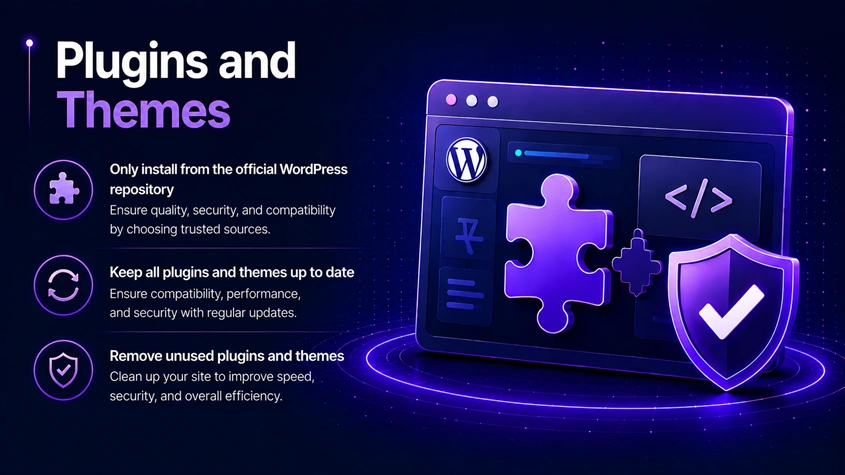
Outdated plugins are the number one cause of WordPress hacks by a wide margin, and it’s almost always avoidable.
- Update plugins and themes within a week of release. The gap between a patch going public and bots exploiting unpatched sites keeps shrinking, so waiting a month is too slow.
- Delete deactivated plugins and themes entirely. A dormant plugin sitting in your files is still a vulnerability, even if it’s switched off in the dashboard.
- Only install from the official WordPress repository or reputable premium developers. Check the plugin’s support history and review activity before trusting it with access to your site.
- Check the last update date before installing anything new. A plugin untouched for over a year is a red flag, even if it currently works fine.
- Never use nulled or “cracked” premium plugins. This is one of the most common and most avoidable ways malware gets injected into WordPress sites, often before you’ve even activated the plugin.
4. Backups
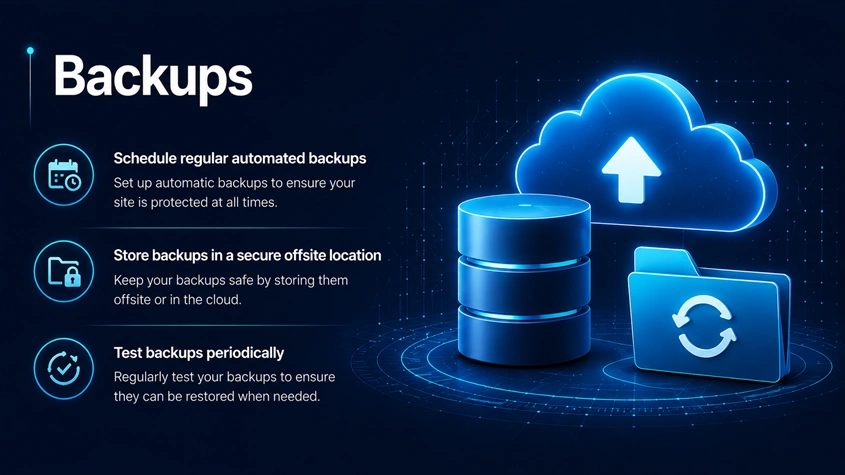
A backup won’t stop an attack, but it’s the difference between a five-minute fix and losing your entire site.
- Run automated backups at least daily if you publish or update content regularly, so you never lose more than a day of work.
- Store backups off-site, on cloud storage or a separate server, not on the same machine as your live site where an attacker could delete both at once.
- Test your restore process at least once. A backup you’ve never restored from is a backup you can’t actually trust in an emergency.
- Keep several days of backup history, not just the most recent snapshot, in case an infection sits unnoticed for a while before you catch it.
5. Monitoring and firewall protection
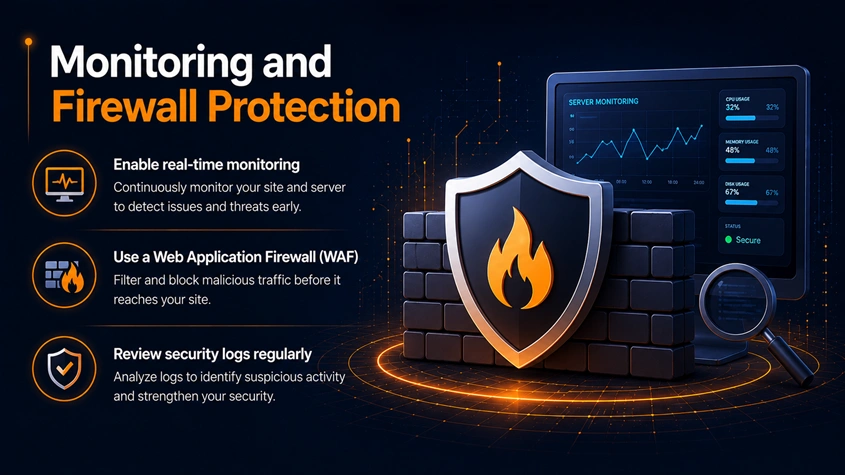
This is where a dedicated security plugin earns its place. A web application firewall filters malicious traffic before it ever reaches your WordPress files, and active malware scanning catches infections early, before Google catches them for you.
- Install a security plugin that includes both a firewall and a malware scanner, not just one or the other. If you’re deciding between two of the most popular options, see our Wordfence vs Sucuri comparison to help you choose.
- Turn on real-time alerts for file changes, failed logins, and new admin user creation, so you find out the moment something looks wrong instead of weeks later.
- Schedule automatic malware scans rather than relying on remembering to run one manually.
- Monitor uptime, so you know immediately if your site goes down or starts silently redirecting visitors to spam.
6. SSL and data protection
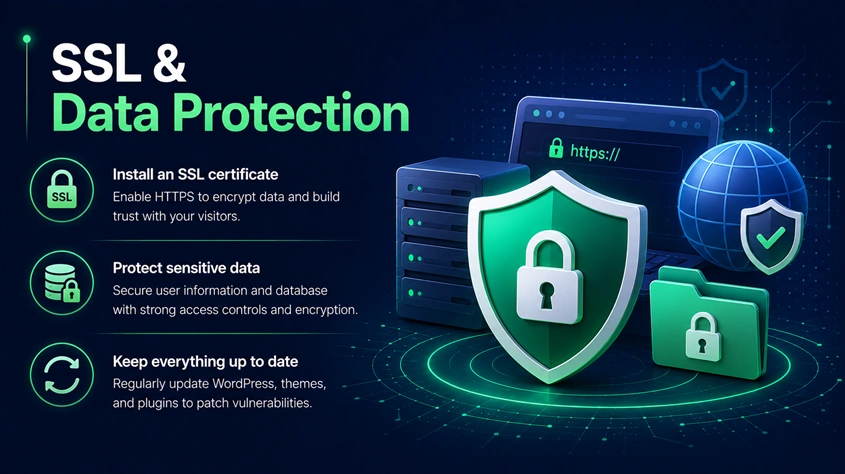
- Install an SSL certificate and force HTTPS site-wide, not just on checkout or login pages. Mixed HTTP/HTTPS content also hurts trust signals with Google.
- Set secure file permissions, typically 644 for files and 755 for directories, and lock wp-config.php down further since it holds your database credentials.
- Disable XML-RPC if you don’t use it. It’s a common vector for brute-force amplification and DDoS attacks, and most sites never touch the features it enables.
- Hide your WordPress version number from the page source. It tells attackers exactly which known vulnerabilities to try first.
Most of the vulnerability types covered here map directly to the OWASP Top 10, the industry-standard reference for web application security risks.
Common mistakes people make even after “securing” their site
- Installing a security plugin, then never opening it again. Firewalls and scanners need their rule sets updated, and their alerts actually read. A plugin running on default settings for two years is barely better than no plugin at all.
- Treating backups as a “set it and forget it” task. Backup plugins fail silently more often than people realize, whether from storage limits, expired connections, or plugin conflicts. Check that backups are actually completing, not just scheduled.
- Securing the main site but ignoring staging or dev environments. A forgotten staging subdomain with the same database is just as valuable to an attacker and usually has far weaker protection.
- Assuming HTTPS means the site is secure. SSL encrypts data in transit. It does nothing to stop a brute-force login attempt or an outdated plugin exploit.
- Not knowing what to do if it’s already too late. If you’re reading this because your site is already showing signs of a hack, skip ahead to our step-by-step WordPress malware removal guide and come back to this checklist once it’s clean.
Want the plugin that handles most of this automatically? Check out our comparison of the best WordPress security plugins to see which one fits your site, or read our Wordfence vs Sucuri breakdown if you’ve narrowed it down to those two.
How often should you go through this checklist?
Once you’ve worked through it fully, a monthly 15-minute check is enough for most sites: confirm updates are current, review user accounts, and check your last backup date. If you run an ecommerce store or handle sensitive user data, tighten that to weekly, and consider a professional security audit once a year.
Want the plugin that handles most of this automatically? Check out our comparison of the best WordPress security plugins to see which one fits your site, or read our Wordfence vs Sucuri breakdown if you’ve narrowed it down to those two.
WordPress security checklist: frequently asked questions
Do I need a security plugin if I have good hosting?
Yes. Good hosting protects the server level, but a security plugin protects the application level, meaning your specific WordPress install, its plugins, its users, and its files. You need both layers, not one or the other.
What’s the number one cause of WordPress hacks?
Outdated plugins and themes. A large majority of WordPress compromises trace back to a known, already-patched vulnerability in software the site owner simply never updated.
How do I secure my WordPress login page?
Enforce strong passwords, turn on two-factor authentication, limit login attempts, and avoid the default “admin” username. A security plugin can automate most of this for you in a few clicks.
Is WordPress core itself secure?
Yes. The WordPress core software is actively maintained and patched quickly when issues surface. The vast majority of hacks come from third-party plugins, themes, or weak account security, not the core software itself.
How much does it cost to secure a WordPress site properly?
You can cover most of this checklist for free using the free tiers of plugins like Wordfence, along with good habits around updates and passwords. A premium security plugin, if you choose one, typically runs $8 to $30 per month depending on features and site count.
Can a WordPress site get hacked even with a security plugin installed?
Yes, if it’s misconfigured or ignored after setup. A security plugin reduces risk significantly but isn’t a substitute for updates, strong passwords, and regular monitoring.
How do I know if my WordPress site has already been hacked?
Watch for unexpected redirects, new admin accounts you didn’t create, a sudden traffic or ranking drop, Google flagging the site in Search Console, or your host suspending the account for malicious activity.
Does changing the login URL actually help security?
It reduces automated scanning traffic significantly, since most bots only target the default wp-login.php path. It’s not a substitute for strong passwords and 2FA, but it’s a useful extra layer.
Should I secure WordPress myself or hire a professional?
Most of this checklist is manageable without technical expertise. Consider a professional audit if you run an ecommerce store, handle sensitive customer data, or have already been hacked once and want a deeper cleanup.
Discover more from Master WordPress with Free Tutorials & Guides
Subscribe to get the latest posts sent to your email.

1 thought on “The Ultimate WordPress Security Checklist (2026)”
Pingback: How to Secure WordPress Login Page & Admin Area (2026 Guide)