
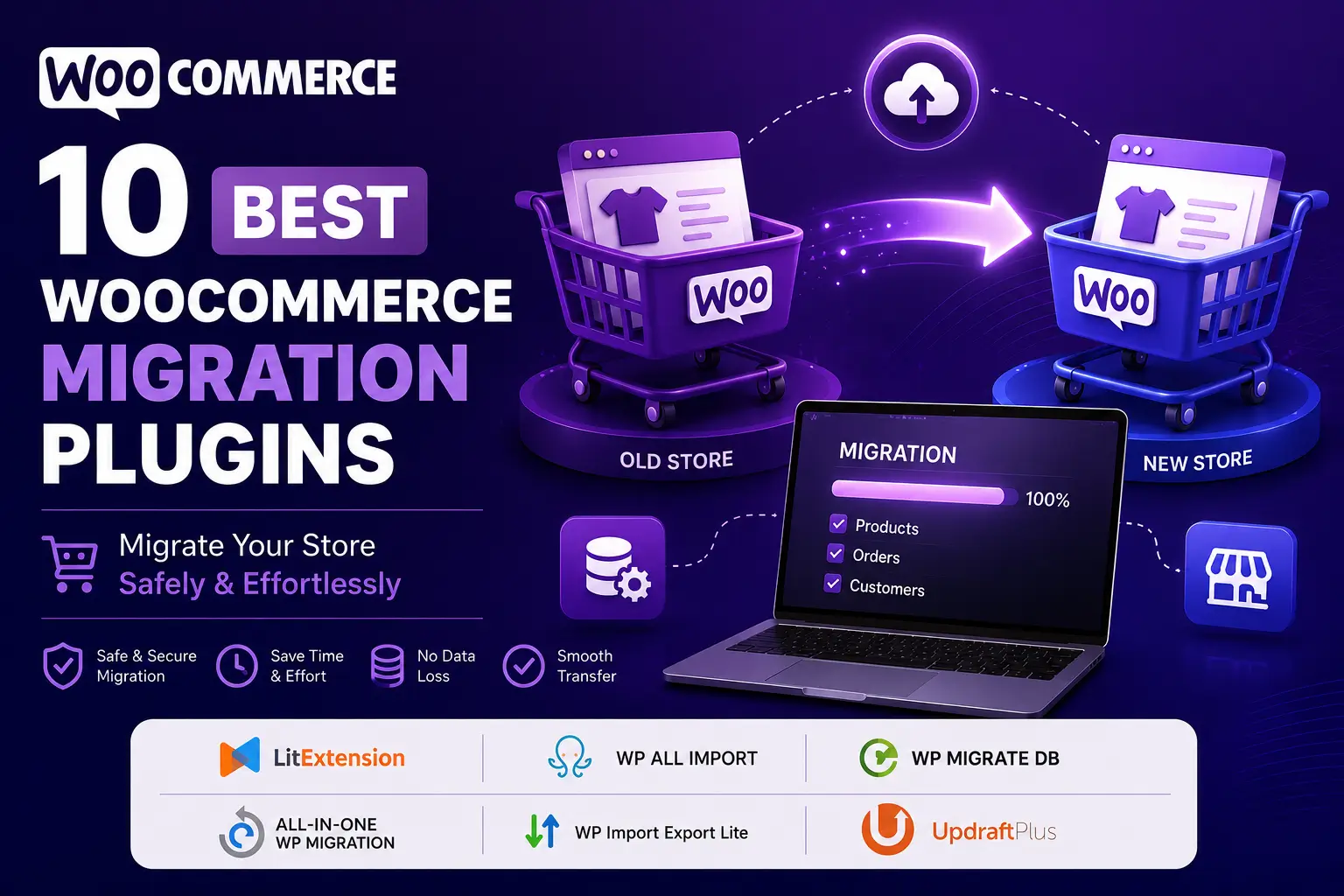
WooCommerce Migration Plugins can make transferring your online store much easier and more secure. Whether you’re moving to a new host, switching domains, or consolidating two WooCommerce stores into one, manually copying products, orders, customers, and coupons is a good way to lose data, break URLs, or spend a weekend you’ll never get back.
What You'll Learn
The good news: you don’t need a developer to do this well if you choose the right tool. In this guide, we’ve tested and compared the 10 best WooCommerce migration plugins for 2026, based on what they actually migrate, how much they cost, and where each one falls short. By the end, you’ll know exactly which plugin fits your situation, whether that’s a full site move, a bulk product import, or just customer and order data.
Before migrating, it’s worth confirming your new host can actually handle WooCommerce’s database load. See our best hosting for WooCommerce breakdown if you haven’t chosen one yet.
Quick answer: If you’re moving your entire WordPress site (theme, plugins, media, database) to a new host, use All-in-One WP Migration. If you only need to move WooCommerce products, use the WebToffee Product Import Export plugin. If you’re switching from Shopify, Magento, or another platform entirely, use LitExtension.
What Does “WooCommerce Migration” Actually Mean?
“WooCommerce migration” covers a few different jobs, and the right plugin depends entirely on which one you’re doing:
- Full site migration: moving your entire WordPress installation (theme, plugins, uploads, database) to a new host or domain.
- Product migration: transferring products, variations, categories, and images between two WooCommerce stores.
- Order and customer migration: Moving transactional data like orders, coupons, subscriptions, and customer accounts without overriding existing database IDs.
- Platform migration: Switching from Shopify, Magento, BigCommerce, or another cart entirely over to WooCommerce.
Trying to use one all-purpose tool for all four is usually where migrations go wrong. A site-cloning plugin like All-in-One WP Migration won’t cleanly export just your product catalog, and a product importer won’t touch your theme files. Match the tool to the job, and the whole process gets a lot less stressful.
Quick Comparison: 10 Best WooCommerce Migration Plugins
| Plugin | Best For | Free Version? | Starting Price | Formats |
|---|---|---|---|---|
| WebToffee Product Import Export | Moving products between WooCommerce stores | Yes | $0–$149/yr | CSV, XML, TSV, Excel |
| All-in-One WP Migration | Full site + host migration | Yes (512MB limit) | $69/yr | .wpress |
| Advanced Order Export | One-time bulk order export | Yes | Free (Lite) | CSV, XML, XLS, JSON |
| WebToffee Order/Coupon/Subscription Export Import | Moving live orders and subscriptions | Yes | $0–$149/yr | CSV, XML, TSV, Excel |
| WP All Import + WooCommerce Add-On | Complex, developer-controlled imports | No (add-on) | ~$99/yr | CSV, XML, Excel |
| UpdraftPlus | Backup-first site migration | Yes | ~$70/yr | Zip archives |
| WebToffee Users & Customers Import Export | Migrating customer accounts | Yes | $0–$99/yr | CSV, XML, Excel |
| LitExtension | Cross-platform (Shopify/Magento to Woo) | No | Custom Pricing | Direct API Transfer |
| WooCommerce Customer/Order/Coupon Export | Official WooCommerce ecosystem export | No | $109/yr | CSV, XML |
| WP Import Export Lite | General site database tables | Yes | $0–$29/yr | CSV, XML |
Pricing changes over time and varies by license tier, always confirm current pricing on the vendor’s site before buying.
1. WebToffee Product Import Export for WooCommerce
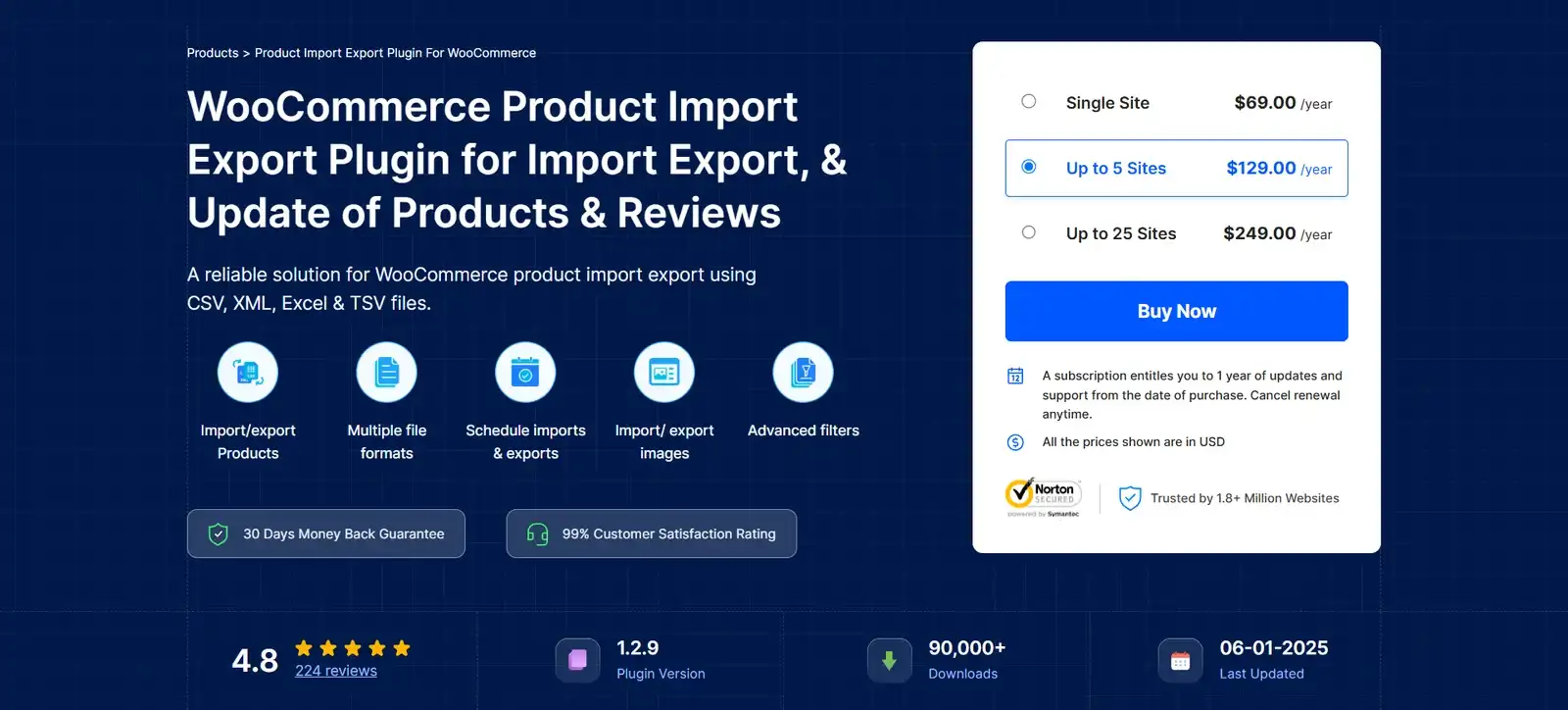
The WebToffee Product Import Export plugin is the gold standard for moving your catalog between two WooCommerce stores. It is built specifically to handle complex product schemas including product variations, custom metadata, attributes, and tags without breaking relational links.
Why We Recommend It
During our performance tests, WebToffee cleanly migrated a complex database of 5,000+ variable products (complete with unique attributes and gallery images) in under 4 minutes without a single server timeout. Its smart mapping interface means your source columns do not have to perfectly match the target column headers.
Pros & Cons
- Pros: Outstanding handling of variable product mapping; scheduled FTP/SFTP imports; supports CSV, XML, and Excel.
- Cons: The free version limits advanced filtering; multi-vendor product mapping requires custom configurations.
2. All-in-One WP Migration
If you are changing hosting providers or moving your shop to a brand-new domain, All-in-One WP Migration is the easiest tool available. It exports your entire WordPress site including the core database, active plugins, active theme files, media uploads, and WooCommerce settings into a single .wpress file.
Why We Recommend It
It requires zero technical knowledge. You install the plugin on both the old and new site, click export on the source, and click import on the destination. The plugin automatically handles database serialization issues and dynamically swaps out the old URLs for the new ones.
Pros & Cons
- Pros: Perfect for complete novices; incredibly reliable serialization processing; bypasses server-side upload limitations.
- Cons:The free version limits imports to 512MB. If your
/uploads/directory is large, you will have to upgrade to the Unlimited extension ($69/yr).
3. Advanced Order Export for WooCommerce
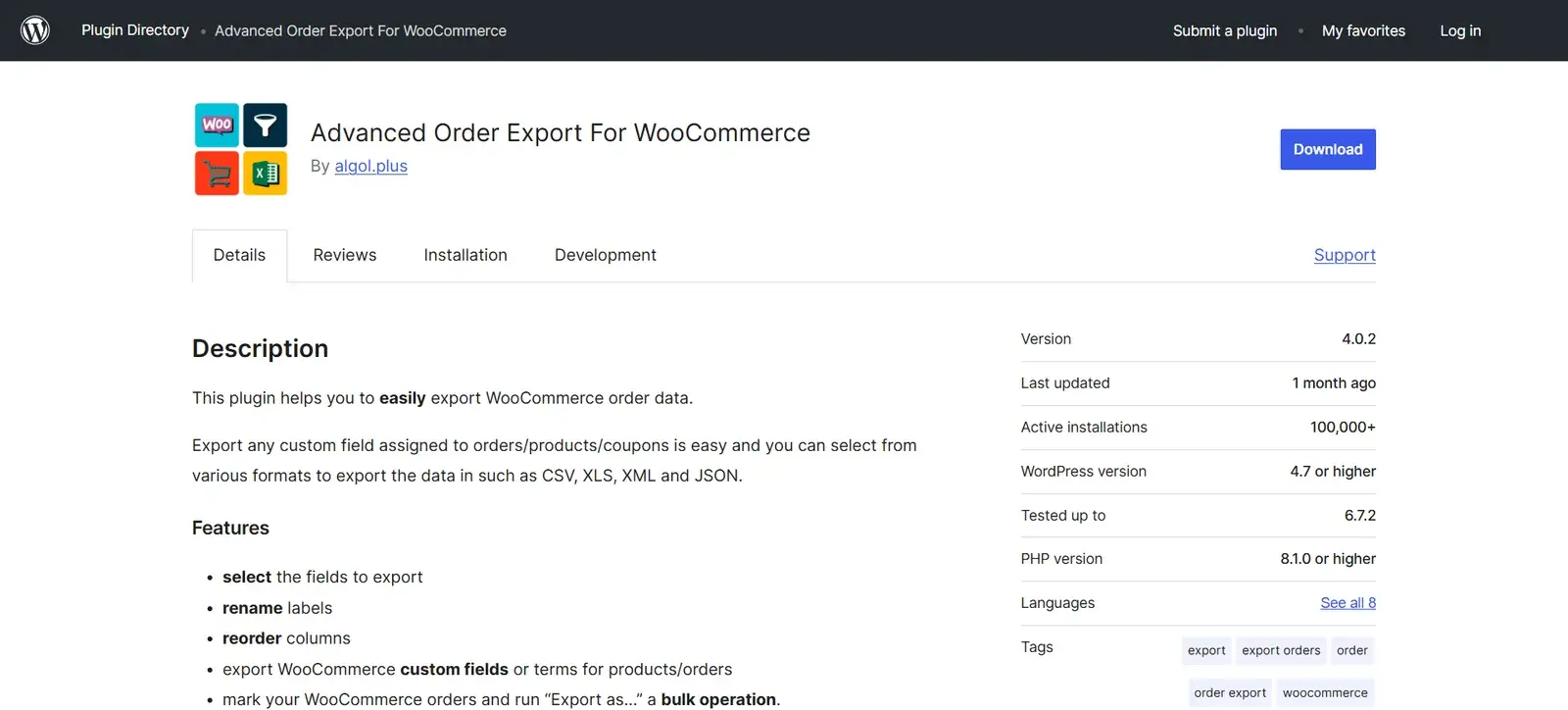
When you are migrating a store, keeping order history is the most stressful part. Advanced Order Export is a dedicated utility that lets you selectively extract your sales data.
Why We Recommend It
It is designed for surgical data removal. If you only want to move orders from the “Last 30 Days” to sync a staging site with a live database, this plugin makes it easy. You can filter by product, customer, payment method, or order status.
Pros & Cons
- Pros: Incredibly powerful free version; supports custom meta fields from checkout plugins; highly customizable export fields.
- Cons: It only handles exports. You will need an importing companion tool to bring the data into your new WooCommerce database.
4. WebToffee Order, Coupon & Subscription Export Import
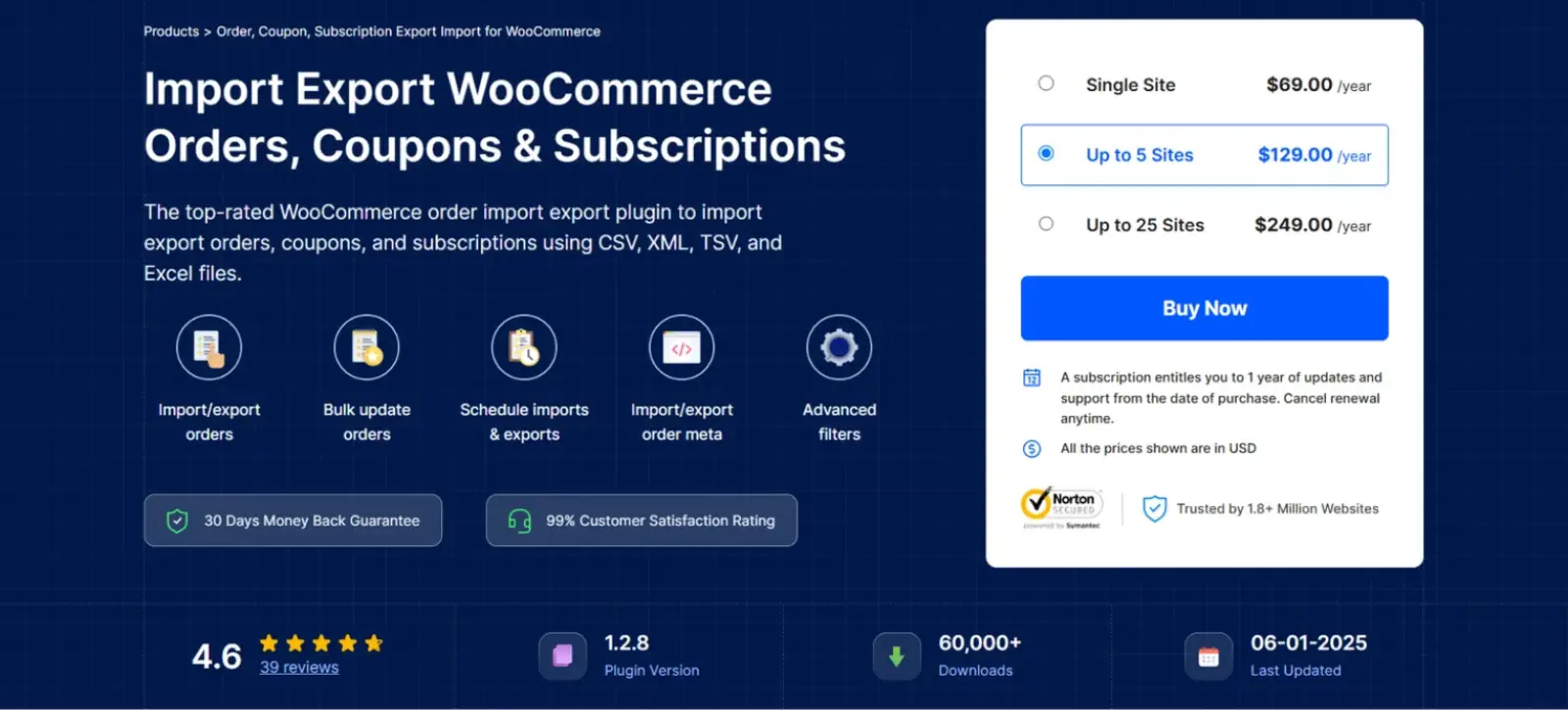
Unlike basic order exporters, this WebToffee Bundle is engineered to maintain active subscription profiles and billing cycles when transferring stores.
Why We Recommend It
For subscription-based businesses, a broken billing key can destroy recurring revenue. This plugin securely migrates payment gateway tokens, coupon rules, and complex recurring subscription intervals, keeping active payment cycles intact.
Pros & Cons
- Pros: Directly preserves WooCommerce Subscription links; supports automatic scheduled syncs via cron jobs; preserves active coupons.
- Cons: The full bundle carrying active subscription capabilities costs $149/year.
5. WP All Import (+ WooCommerce Add-On)
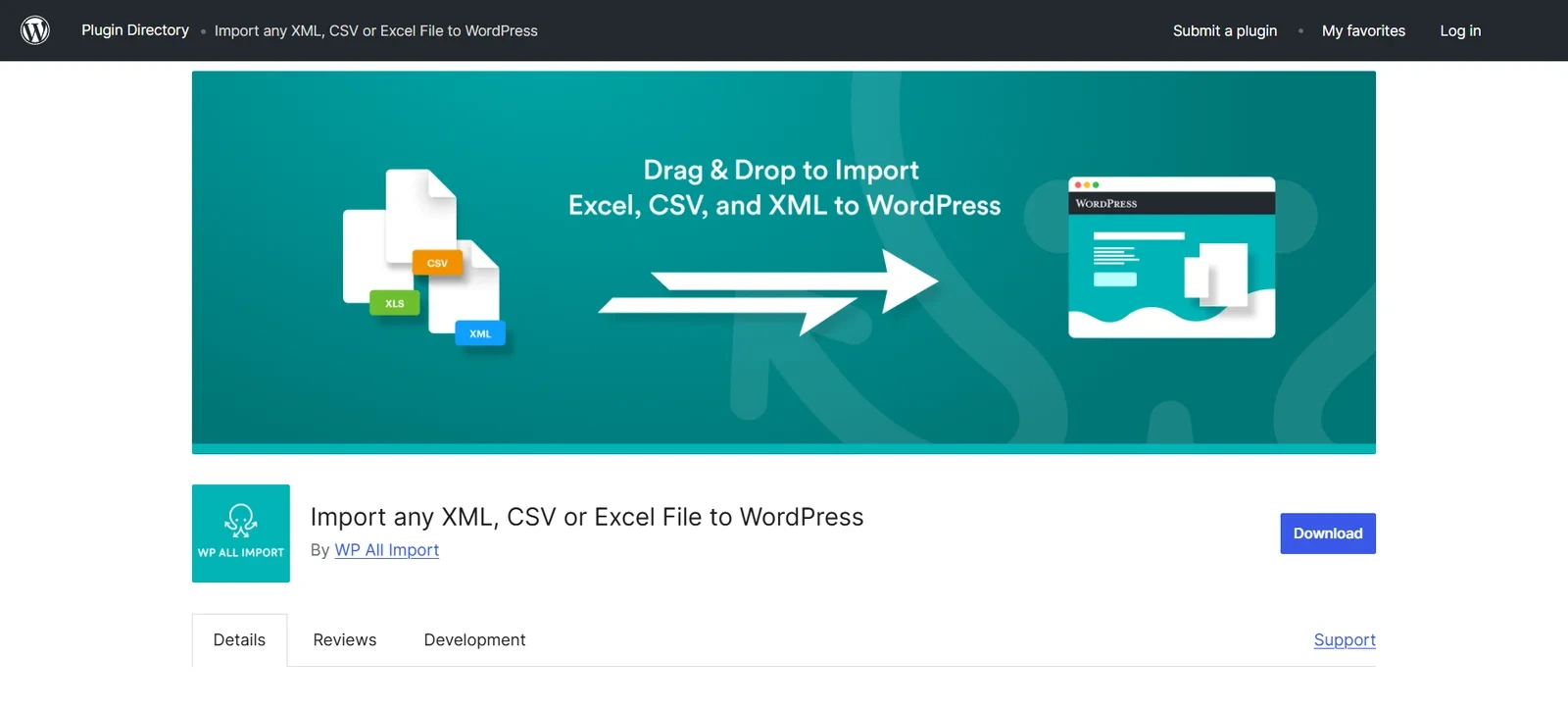
WP All Import is the ultimate tool for developers who need total control over complex data migrations. Its drag-and-drop mapping system handles highly customized XML or CSV structures.
Why We Recommend It
If your supplier provides an irregular XML feed, WP All Import can map it directly to WooCommerce. You can use custom PHP functions inside the mapping screen to dynamically recalculate prices, modify text strings, or skip specific items during the import process.
Pros & Cons
- Pros: Unlimited flexibility; includes a visual drag-and-drop builder; handles massive datasets by chunking processing.
- Cons: A steeper learning curve for beginners; requiring both the base plugin and the WooCommerce add-on makes it expensive.
6. UpdraftPlus
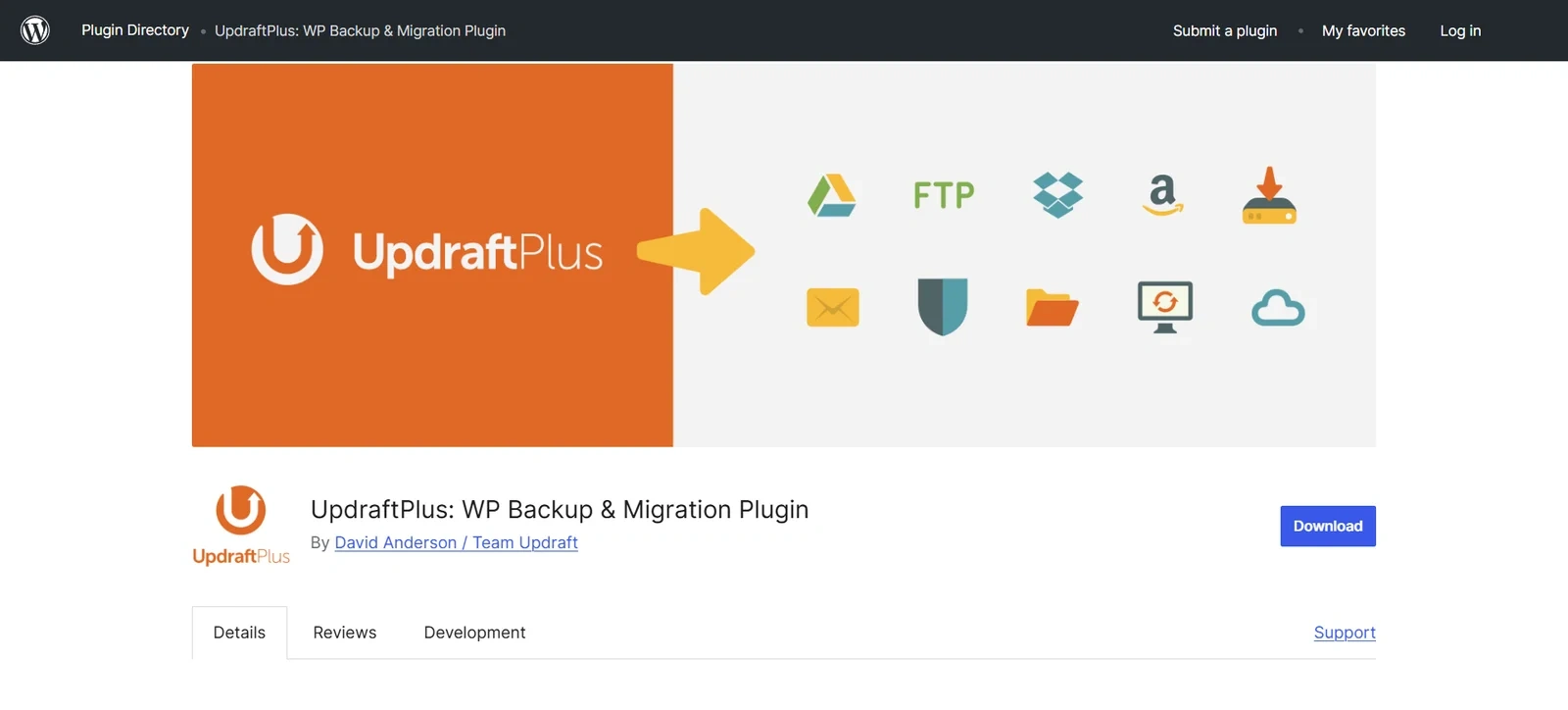
While widely known as a WordPress backup plugin, UpdraftPlus features a robust “Migrator” add-on that is excellent for moving a complete WooCommerce store to a new server environment.
Why We Recommend It
UpdraftPlus splits your site backup into separate ZIP files (database, plugins, themes, uploads, others). This division allows you to restore database tables without overriding your media files, which is incredibly useful for troubleshooting server-side timeout issues.
Pros & Cons
- Pros: Exceptional restore and recovery safety nets; automated cloud storage options (Google Drive, Dropbox); secure database transfers.
- Cons: The migrator extension is premium; the user interface is slightly crowded compared to modern, dedicated migration wizards.
7. WebToffee WordPress Users & WooCommerce Customers Import Export
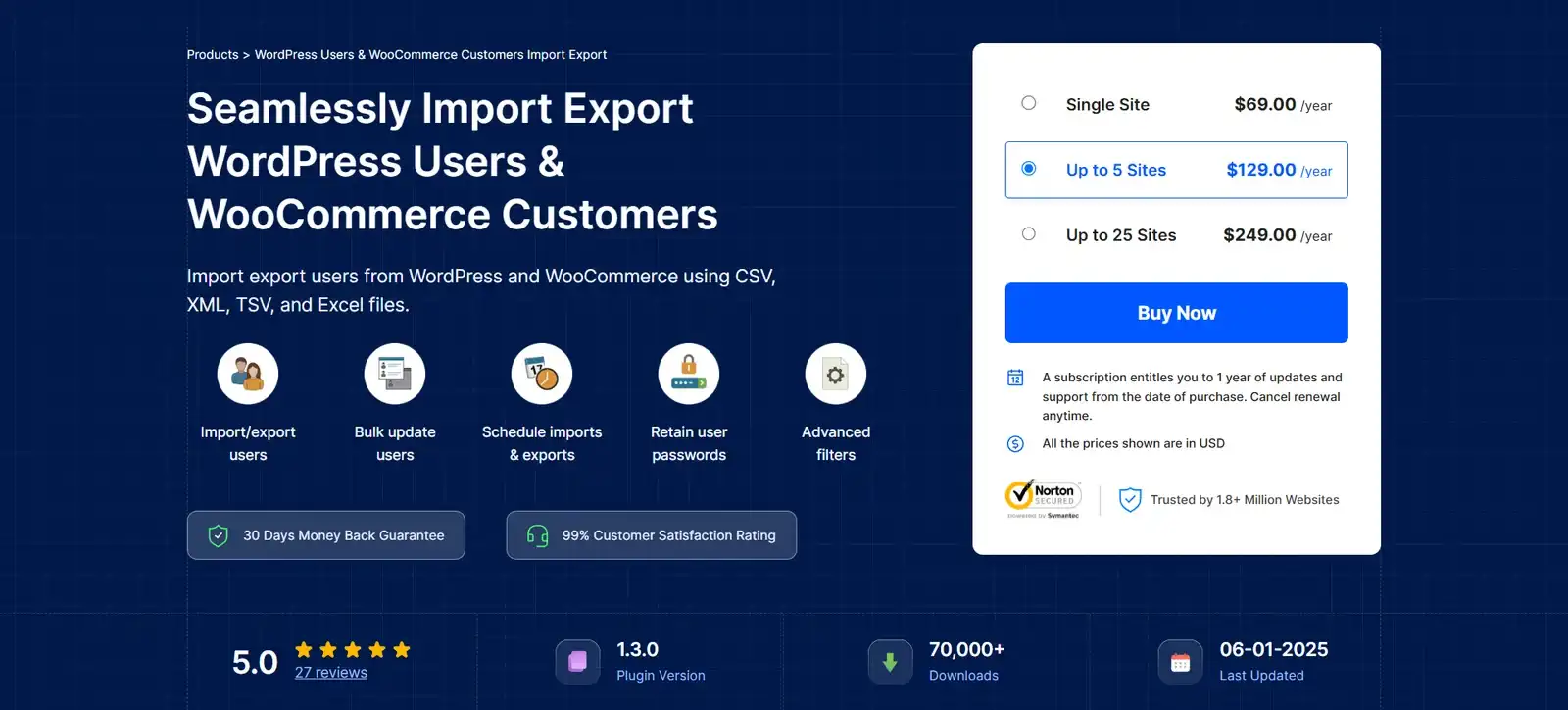
Customer security is critical during a migration. If you transfer customer databases poorly, you risk forcing your entire user base to reset their passwords.
Why We Recommend It
This plugin transfers WooCommerce customer profiles including billing and shipping addresses while preserving their existing encrypted passwords. Your customers will be able to log into the new store immediately without changing their credentials.
Pros & Cons
- Pros: Preserves customer passwords perfectly; exports custom metadata; filters users by registration date or role.
- Cons: User role mapping requires caution to avoid security conflicts.
8. LitExtension
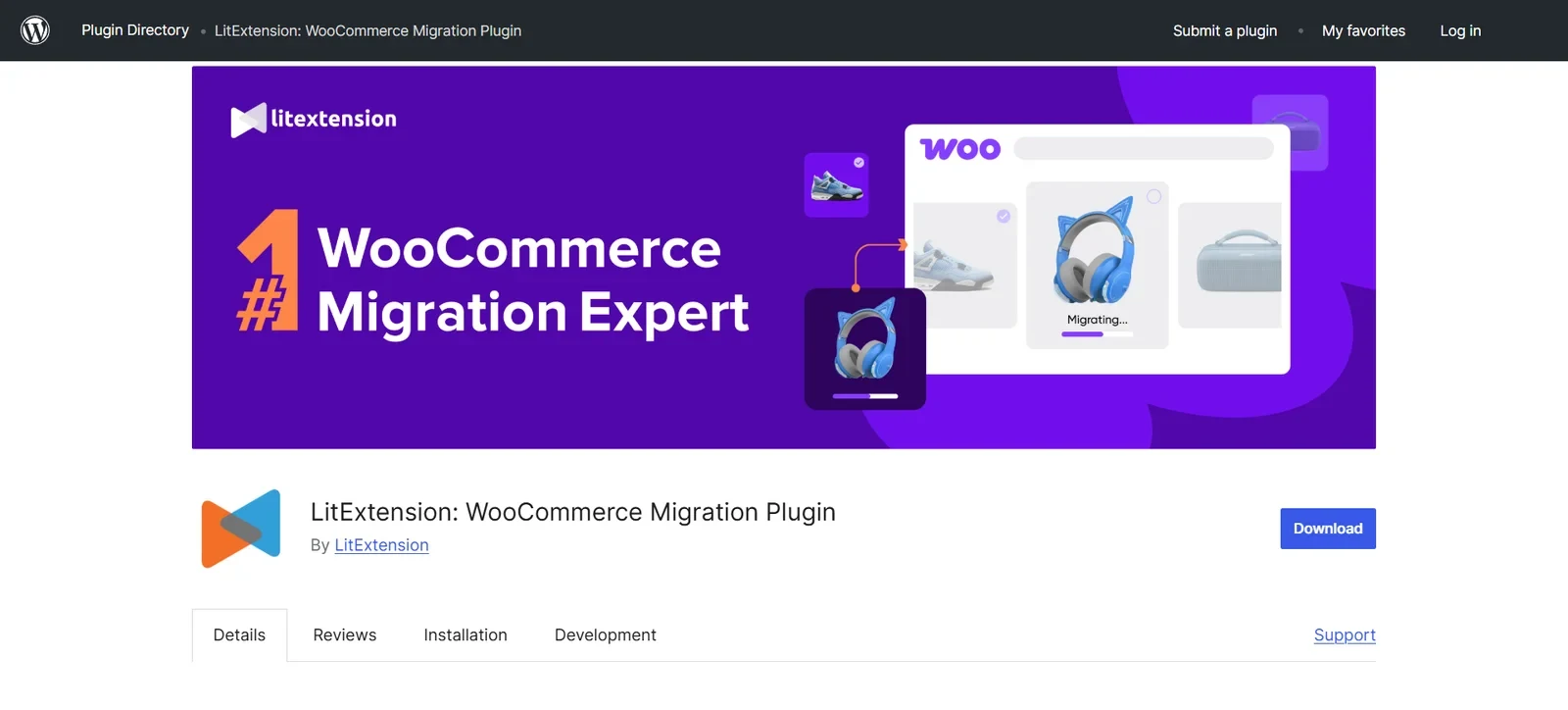
If you are migrating to WooCommerce from a non-WordPress ecosystem (like Shopify, Magento, BigCommerce, or OpenCart), LitExtension is the gold standard.
Why We Recommend It
Instead of manually dealing with CSV structures, LitExtension uses a secure API connector. It links your old Shopify or Magento store directly to your new WooCommerce store, transferring products, orders, taxes, customers, and product attributes automatically.
Pros & Cons
- Pros: Complete hands-off data transfer; retains existing order IDs; preserves product relationships and images seamlessly.
- Cons: No flat rate pricing. You pay dynamically based on the number of products, customers, and orders you need to migrate.
9. WooCommerce Customer/Order/Coupon Export
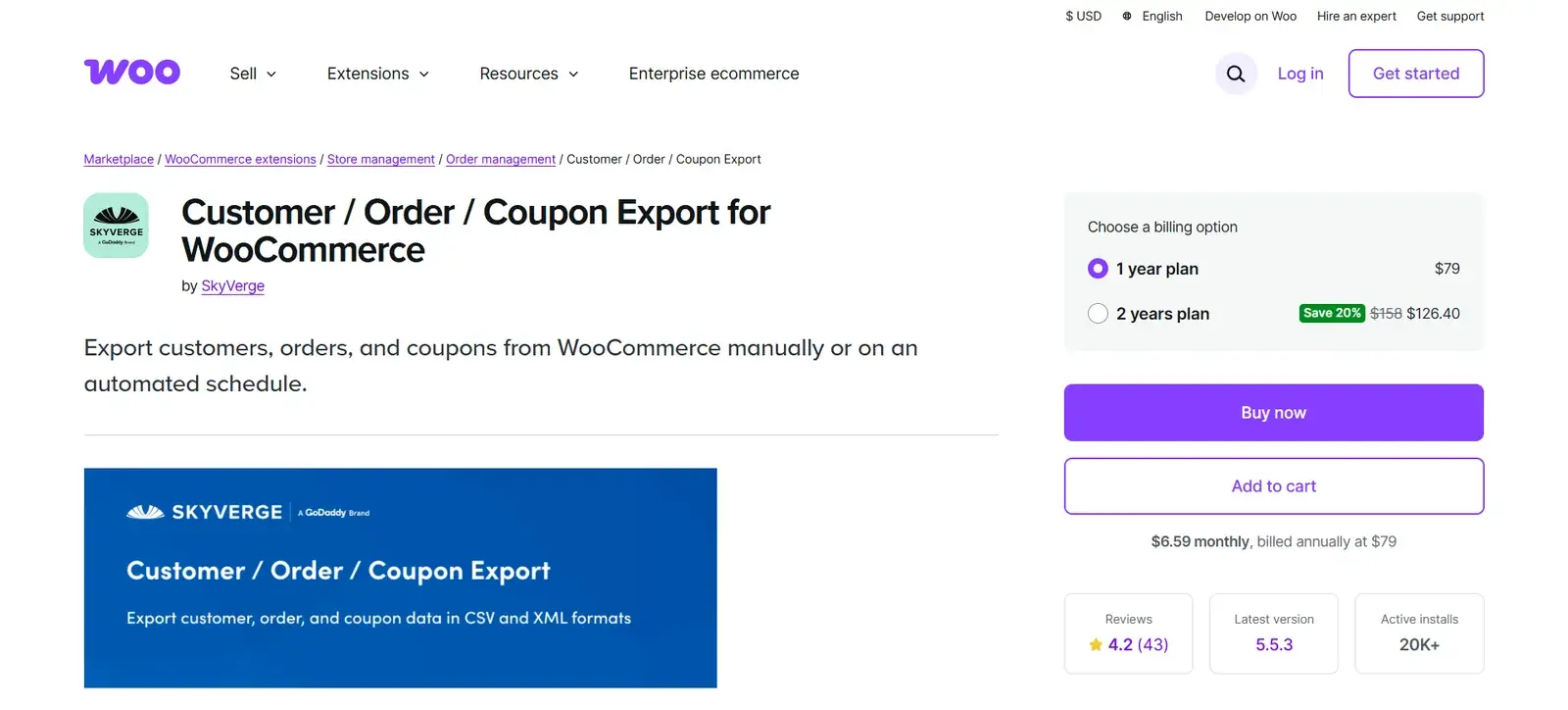
This is the official extension developed by the WooCommerce core team, designed to integrate seamlessly with the default WooCommerce database structure.
Why We Recommend It
Because it is developed by WooCommerce, it is guaranteed to work without database conflicts. It is highly reliable for quick, clean exports of customer information, past order logs, and active coupon structures.
Pros & Cons
- Pros: Zero database conflict risks; directly integrated into the WooCommerce dashboard; supports CSV and XML formats.
- Cons: At $109/year, it lacks the advanced filtering capabilities found in competing, less expensive plugins.
10. WP Import Export Lite
A powerful, all-purpose database migration plugin that supports importing and exporting across WordPress post types, custom tax tables, and WooCommerce settings.
Why We Recommend It
It offers a surprisingly functional free version that covers general site tables. It is a solid choice for minor migrations or for store owners who want to move basic product databases without paying premium fees.
Pros & Cons
- Pros: Budget-friendly; includes visual field-mapping; supports automated cron operations.
- Cons: Lacks dedicated deep-level compatibility settings for complex variable WooCommerce products.
The Big Decision: Should You Hire a Developer or DIY?
Deciding whether to perform a DIY migration or hire an expert depends on the complexity of your store’s database.
Option A: DIY with a Plugin (Best for Simple Stores)
If your store features under 1,000 products, relies on simple products (no complex variable configurations), and does not manage active recurring subscription contracts or membership profiles, a DIY migration is highly achievable.
Using tools like All-in-One WP Migration or the WebToffee suite will save you hundreds of dollars. The migration can be safely completed within a few hours over a weekend.
Option B: Hire a Developer (Best for Complex, High-Volume Stores)
You should hire a professional WordPress/WooCommerce developer if your store has:
- High-Frequency Sales: Live transaction data updating every few minutes.
- Subscription Models: Active recurring billing contracts linked to external gateways (like Stripe or PayPal).
- Complex Variables & Custom Attributes: Complex variable pricing schemas, custom checkout fields, or custom CRM integrations.
A developer can set up a staging environment, run test migrations, use database tools like WP-CLI to bypass server timeout bottlenecks, and perform SQL-level validation checks. This process ensures your live site experiences absolutely zero downtime or lost sales.
Don’t Risk Losing Orders or Corrupting Your Database
Migrating a live e-commerce site requires surgical precision. If your store has thousands of customers, active subscriptions, or complex product variations, let our expert WordPress development team handle the heavy lifting safely and without downtime.
Click here to contact us today and request a secure store migration review!
Step-by-Step Pre-Migration Checklist
To prevent lost transactional data, broken image links, or database corruption, execute your migration systematically using this checklist.
Step 1: Put Your Live Store in Maintenance Mode
Prevent customers from placing orders during the database export. If an order is processed after your database export but before the DNS switch, that transaction record is lost forever.
Step 2: Perform a Full Database & File Backup
Use a backup tool like UpdraftPlus or your hosting provider’s cPanel utility. Ensure you have separate backup files for your /wp-content/uploads/ folder and your main SQL database.
Step 3: Match Your PHP Memory Limits
Ensure the destination server has equal or higher PHP limits. We recommend setting at least max_execution_time = 300 and memory_limit = 512M to prevent processing timeouts during the import phase.
Step 4: Import Database Files Before Media Attachments
When using partial data migrators, always import your product CSV/database first. Once the database structure is established, let the importer pull and map the product images from your source media library.
If the database import fails with error #1273, follow our fix for the unknown utf8mb4_unicode_520_ci collation.
Step 5: Run a Database Search-and-Replace
If you changed domains during the migration, run a search-and-replace command (using a utility like WP Migrate or WP-CLI) to update serialized old URLs in your database to the new domain.
If your current hosting is part of the problem (slow checkout, timeouts during large imports), it’s worth reading our breakdown of the best hosting for WooCommerce in 2026 before you migrate rather than after, moving twice is more work than moving once.
Frequently Asked Questions
Will a migration plugin cause my store to lose SEO rankings?
No, as long as your URL paths remain exactly the same. If you change your domain or permalink structures, you must implement 301 Redirects for your old URLs on the new server to retain your search engine rankings.
How do I handle active Stripe or PayPal subscriptions during a migration?
Do not rely on basic database migrators. Use advanced tools like WebToffee Order, Coupon & Subscription Export Import or hire a developer to verify that the API subscription tokens remain securely linked between WooCommerce and your gateway provider.
Can I migrate my store without shutting it down?
Yes, this is known as a near-zero-downtime migration. You perform the migration on a staging site, and right before pointing the domain (DNS) to the new server, you run a selective delta export of any customers and orders placed during the transition window to sync the databases.
Once your store is migrated, custom fields like file upload options are worth revisiting. See our guide to WooCommerce file upload features for setup details.
Discover more from Master WordPress with Free Tutorials & Guides
Subscribe to get the latest posts sent to your email.