

If you’ve ever struggled to make your slider text readable over a bright or busy background image, a semi-transparent color overlay is the fix. It sits between your background and your text layers, tinting the image just enough to boost contrast without hiding it completely.
What You'll Learn
In this guide, you’ll learn exactly how to add a color overlay on Slider Revolution 6+ using a Shape Layer, the correct method for the current interface. Slider Revolution does offer a built-in dotted overlay for video slides, but for a solid or custom-colored overlay, the Shape Layer approach is what you need.
This tutorial reflects the Slider Revolution 6+ Module Editor interface. If you’re on an older version, some panel names may differ.
Why Add an Overlay on Your Slider?
Before jumping into the steps, here’s why this matters:
- Text readability: Light or colorful backgrounds make white/dark text hard to read. An overlay adds contrast instantly.
- Brand consistency: Use your brand’s primary color as a tint to make every slide feel on-brand.
- Professional look: Overlays give sliders a polished, editorial feel that plain background images lack.
What You’ll Need
- WordPress with Slider Revolution installed and activated (v6+)
- An existing slider with at least one slide
- A background image is already set on your slide
Step-by-Step: How to Add a Color Overlay on Slider Revolution 6+
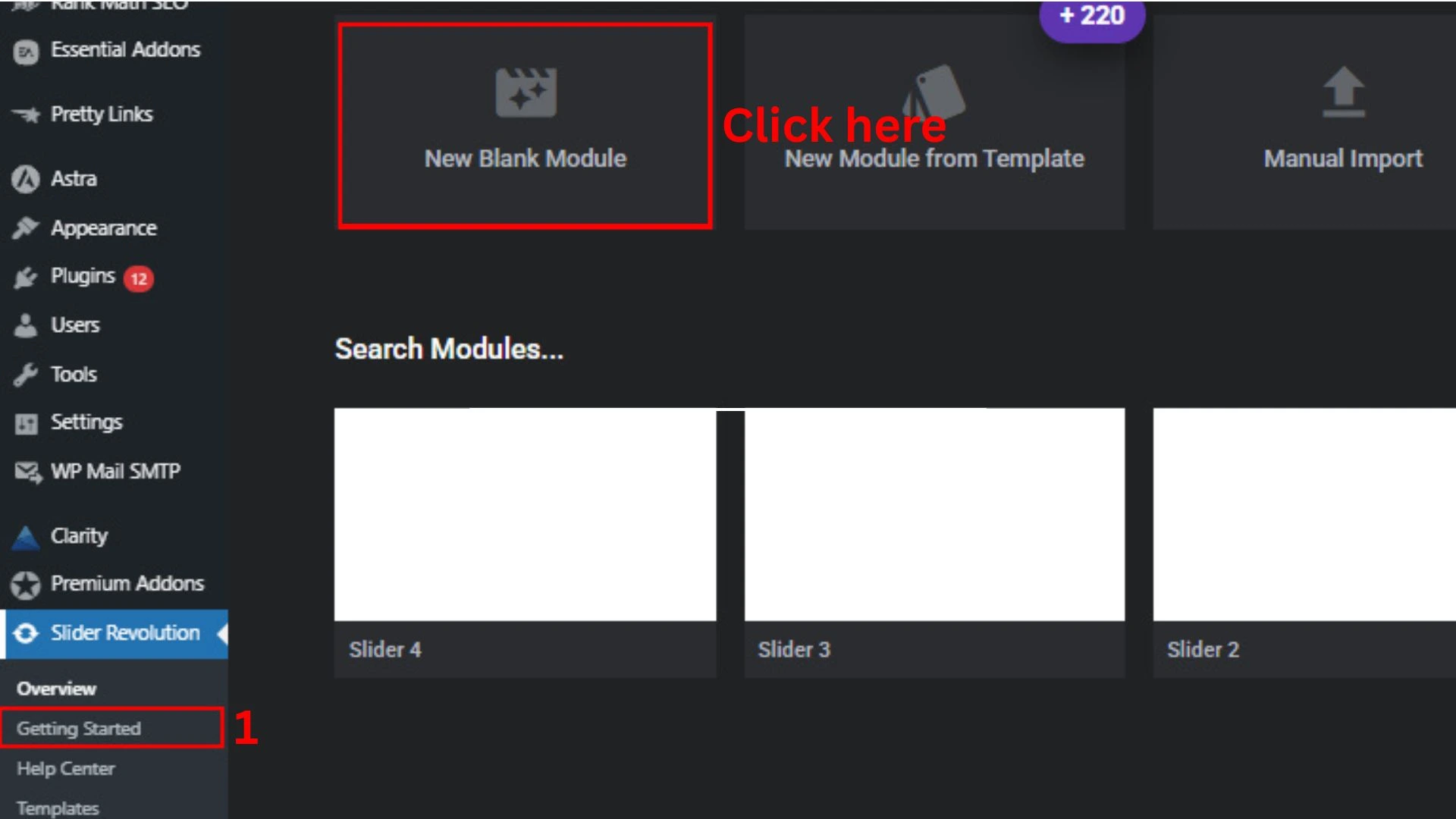
Step 1: Open the Module Editor
Go to WordPress Admin → Slider Revolution and click on the slider you want to edit. This opens the Module Editor, the main drag-and-drop interface where all slide editing happens.
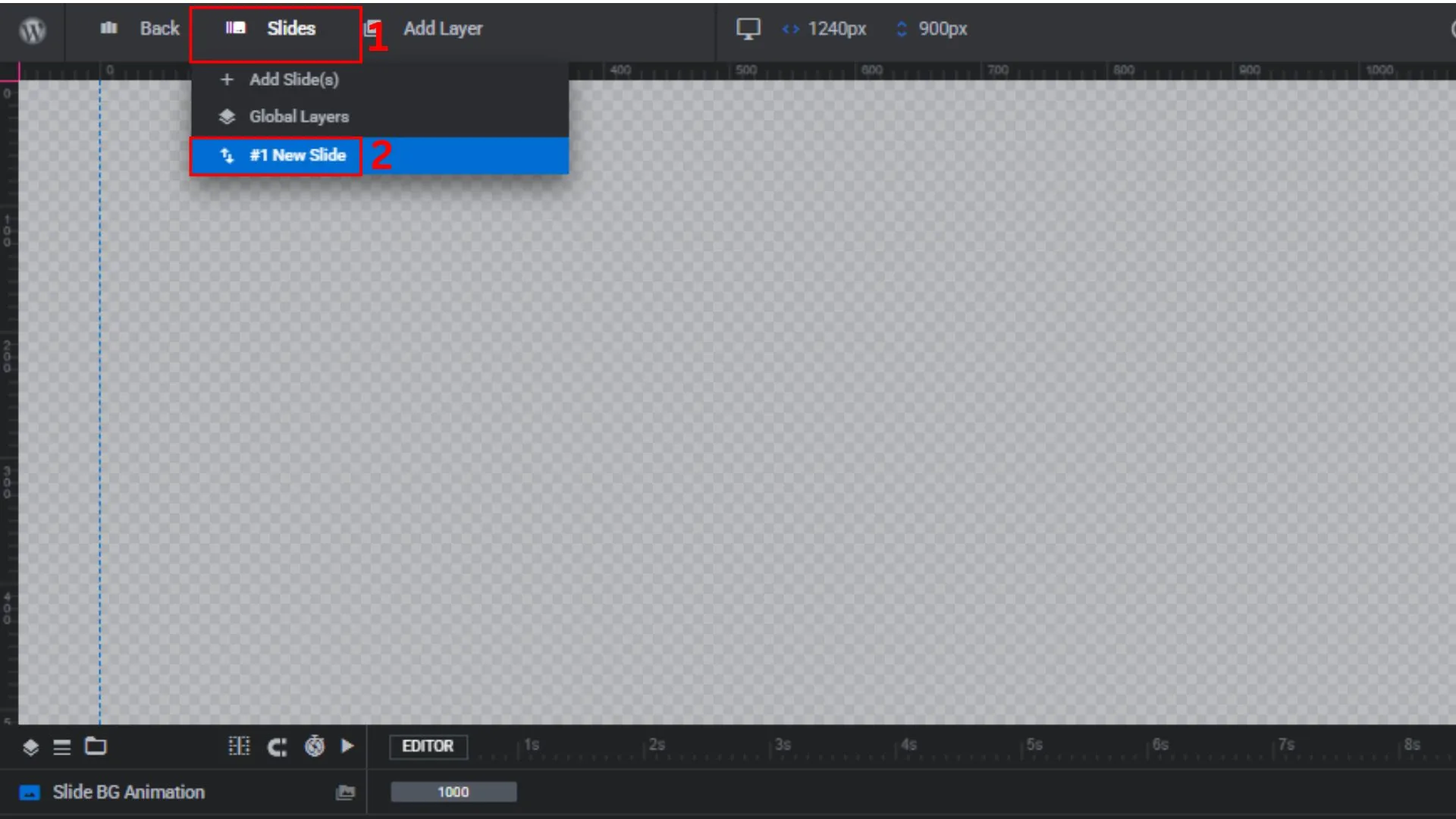
Step 2: Select Your Slide
In the slide panel (bottom of the editor), click on the specific slide where you want to add the overlay. Make sure the slide is active before moving to the next step.
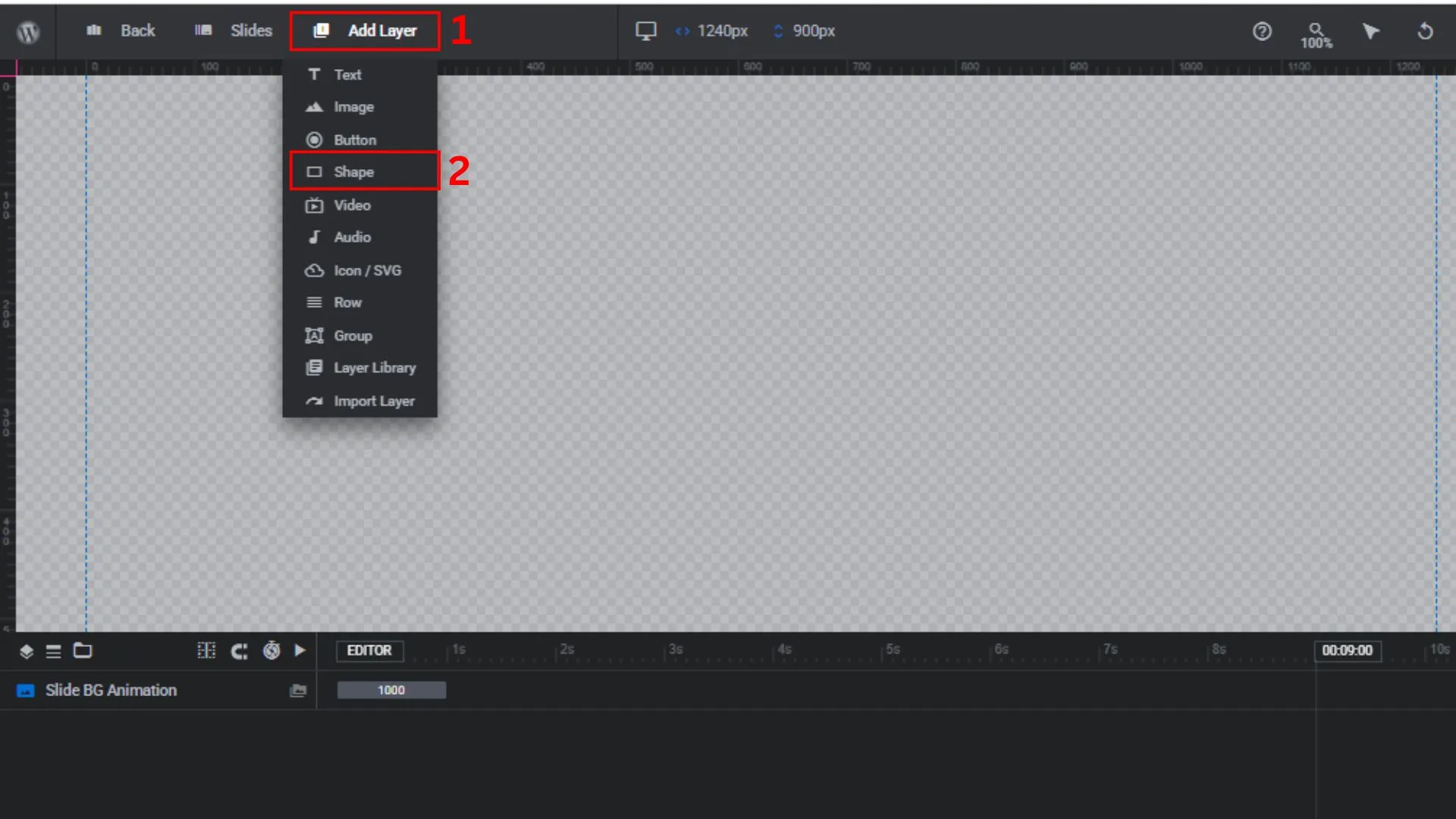
Step 3: Add a Shape Layer
In the top toolbar, click “Add Layer” and select “Shape” from the dropdown options.
A blank rectangular shape will appear on your canvas. Don’t worry about its size, yet we’ll fix that in the next step.
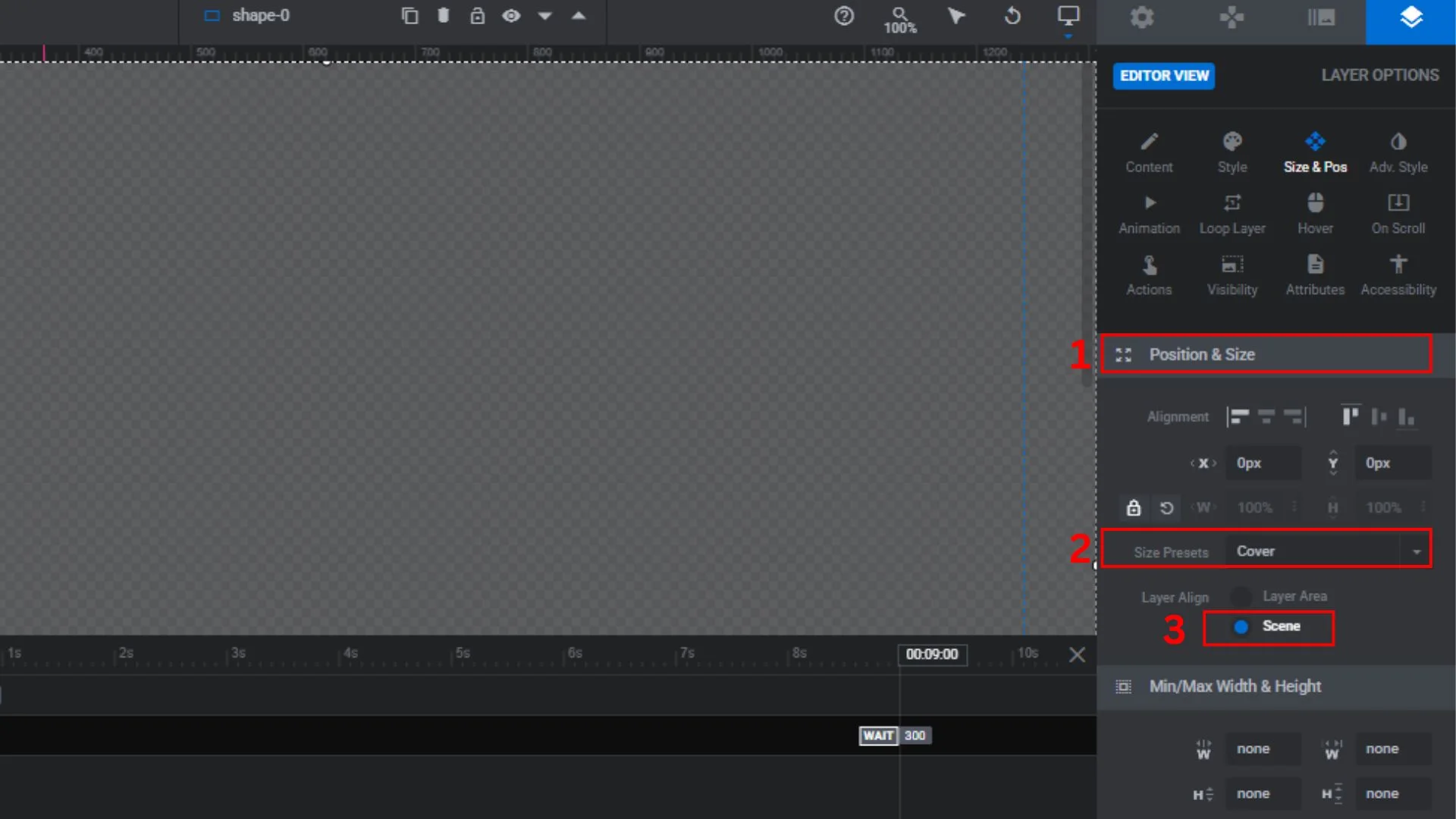
Step 4: Make the Shape Cover the Full Slide
With the Shape Layer selected, go to the Size & Position panel on the right side.
Set:
- Size Preset: Cover
- Layer Align: Scene
This makes the overlay stretch across the entire slide on all screen sizes automatically.
If your version doesn’t show a “Cover” preset, set these values manually:
| Property | Value |
|---|---|
| Width | 100% |
| Height | 100% |
| X Position | 0 |
| Y Position | 0 |
| Horizontal Align | Left |
| Vertical Align | Top |
Step 5: Set the Overlay Color and Opacity in the Slider Revolution
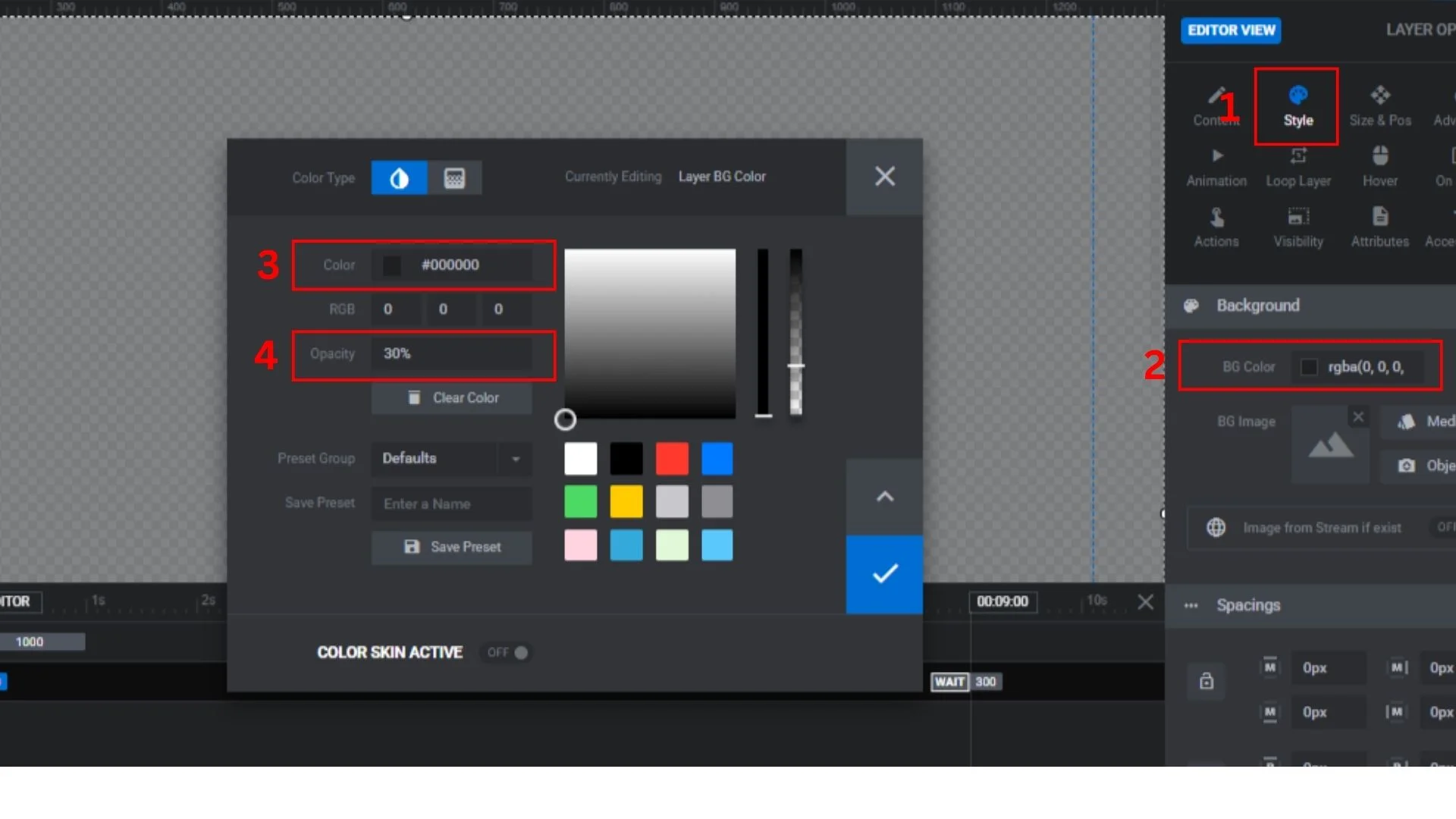
With the Shape Layer still selected, click the “Style” tab in the right panel. Under the Background section:
- Click the color swatch to open the color picker
- Enter your color: #000000 (black) is the most common choice for improving text readability, but you can use any color, including your brand color
- Adjust the opacity: anywhere between 30% and 60% is the sweet spot for most designs
Opacity guide:
- 20-30%: Subtle tint, background image still very visible
- 40-50%: Balanced, good text contrast without hiding the image
- 60-70%: Strong overlay, image becomes secondary
Step 6: Fix the Layer Order in the Timeline
This is the step most people miss, and it’s what causes the “text looks grey” problem.
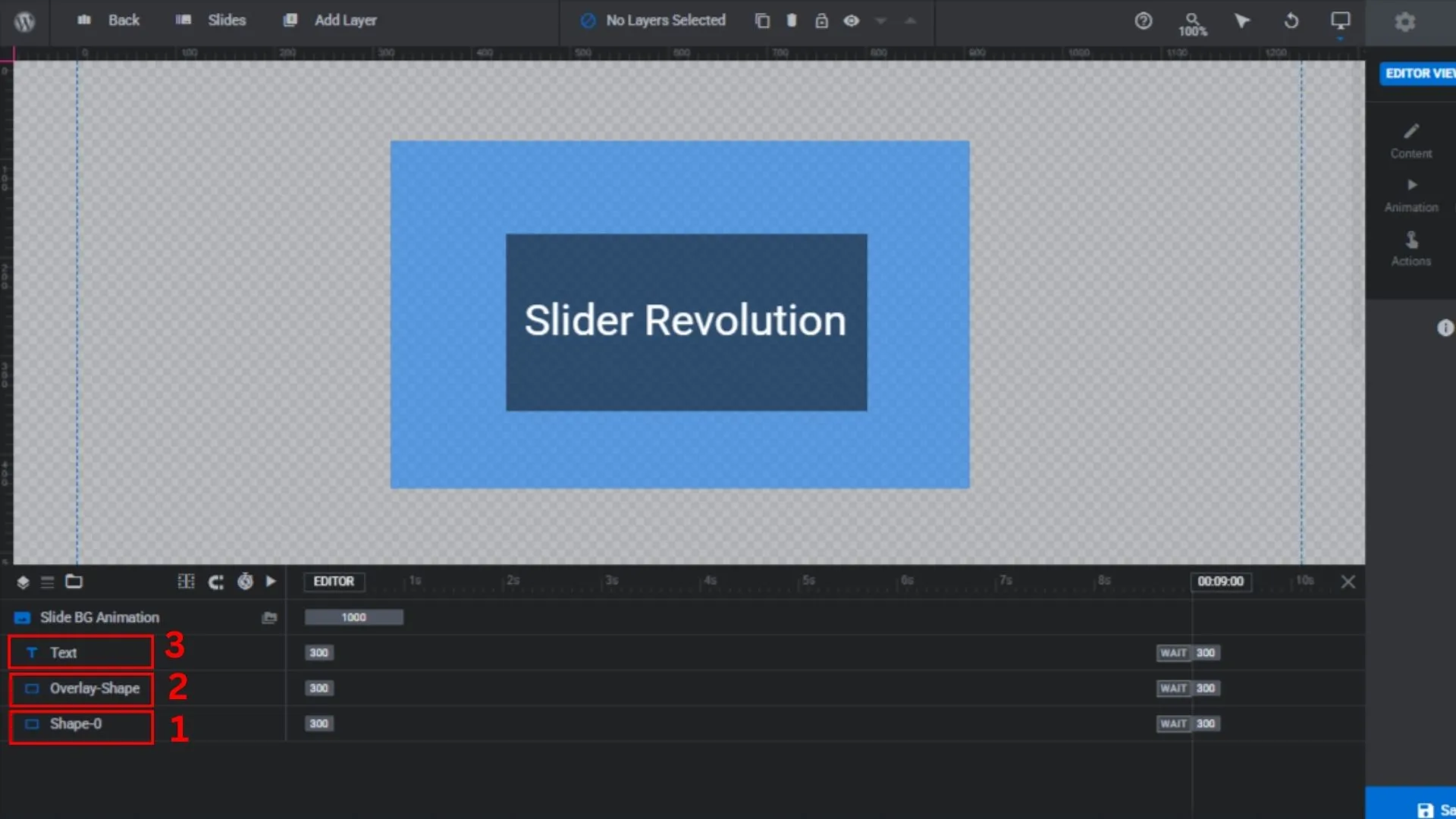
By default, new layers are added at the top of the Timeline, which means they sit in front of everything, including your text. You need to move the overlay behind your text layers but above the background.
In the Timeline panel at the bottom of the editor:
- Find your Shape Layer (the overlay you just created)
- Drag it down so it sits just above the background/image layer
- All text, button, and icon layers should be above the overlay in the timeline
In Slider Revolution 6, layers higher in the timeline = closer to the front (higher z-index). Overlay should be near the bottom, just above the slide background.
Step 7: Preview and Save
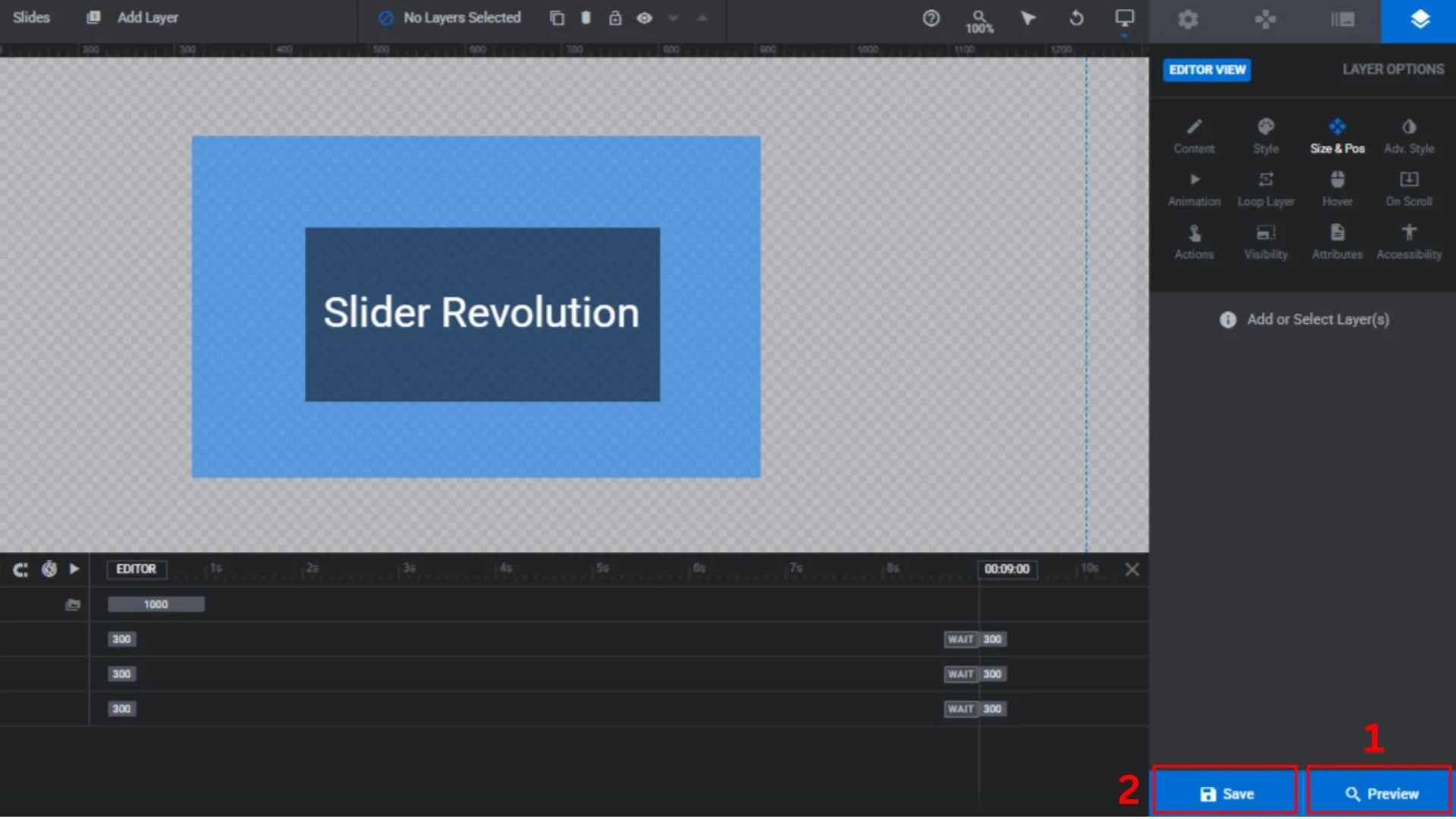
Click the “Preview” button to check how the overlay looks. Tweak the color and opacity if needed. When you’re happy, click “Save” to apply the changes to your live slider.
Bonus: Creative Overlays with Blend Modes
Want more than a simple color tint? Slider Revolution 6 supports CSS Blend Modes on Shape Layers, similar to what you’d find in Photoshop or Figma.
To use them:
- Select your Shape Layer
- Go to Layer Options → Adv. Style → Blend Mode
- Try different modes:
| Blend Mode | Effect |
|---|---|
| Multiply | Darkens great for adding depth |
| Screen | Lightens good for bright, airy feels |
| Overlay | Increases contrast and saturation |
| Color Dodge | Creates a dramatic, bright glow |
Learn more about how blend modes work on the MDN Web Docs Blend Mode reference. It’s the clearest explanation available.
Quick Reference
| Step | Action |
|---|---|
| 1 | WordPress Admin → Slider Revolution → Open Module Editor |
| 2 | Select your target slide |
| 3 | Add Layer → Shape |
| 4 | Size Preset: Cover / Layer Align: Scene |
| 5 | Style tab → Set color + opacity (30–60%) |
| 6 | Move overlay below text layers in Timeline |
| 7 | Preview → Save |
Frequently Asked Questions
Why does my text look grey instead of white after adding the overlay?
This is a layer order issue. Your overlay Shape Layer is sitting on top of your text layers in the Timeline, which causes the overlay color to blend with and mute your text color. Go to the Timeline panel, drag the Shape Layer down so it sits below all text and button layers, and your text will return to its correct color.
Can I add a gradient overlay instead of a solid color?
Yes. Add two Shape Layers with different colors and different opacity levels, or use the background gradient option within the Shape Layer’s Style settings if your version of Slider Revolution supports it. Stack them in the correct order in the Timeline just like a solid overlay.
Does the overlay work on all slide types: image, video, and custom?
Yes. The Shape Layer approach works on all slide types in Slider Revolution 6. Specifically for video slides, Slider Revolution has a built-in dotted pattern overlay. However, for a solid color overlay on video slides, you still use the same Shape Layer method described in this tutorial.
Will adding an overlay slow down my slider or website?
No. A Shape Layer is rendered purely with CSS; it adds no additional image files or scripts. It has zero impact on your slider’s loading speed. That said, always make sure your background images are compressed before uploading to keep overall page speed healthy.
My overlay doesn’t stretch to full width on mobile. What should I do?
Make sure Layer Align is set to Scene (not Slide or a fixed pixel value). The Scene alignment tells Slider Revolution to scale the layer relative to the full module width, which covers all breakpoints, including mobile.
Can I apply the same overlay to multiple slides at once?
Not directly with a single layer, but you can right-click the Shape Layer in the Timeline and use the “Copy Layer to All Slides” option (available in Slider Revolution 6). This duplicates the overlay to every slide in the module instantly.
Final Thoughts
Adding a color overlay on Slider Revolution is one of the quickest ways to make your slider look more polished and your text more readable. The key things to remember:
- Always use a Shape Layer for custom solid color overlays
- Set Size Preset to Cover and Layer Align to Scene for full coverage
- Layer order in the Timeline is everything; overlays must sit above the background, below the text
If this tutorial helped you, share it with someone else building their WordPress site. And if you’re running into a version-specific issue not covered here, drop a comment below, and I’ll help you out.
Discover more from Master WordPress with Free Tutorials & Guides
Subscribe to get the latest posts sent to your email.

15 thoughts on “6 Easy Steps to Add a Color Overlay on Slider Revolution”
This doesn’t seem to work here anymore…no opacity layer shows up
Thanks to show your interest and ask your query, I think you have to read the article carefully again. because I have created no. of slides through this 🙂 please let me know
Hi, great article. It worked but my text layers become grey too. even if i change the zindex they are still grey. Not sure what thats about . But still great tutorial. thanks.
Hello Max,
Thanks to share your view on the article. From the setting of layer you can change the color. Please let me know if you did this otherwise I’ll tell you.
Brother when I added the color overlay the text on my slider become grey instead of pure white which I set it. Now whatever I do becoz of overlay the color of my text remains grey but not pure white.
Hello Asad,
Thanks for asking your query. I think you have to change the text color to white. please attach your slider screenshot here.
awesome i set the full slide overlay..with the help of your article.
Thank you so much, Swaraj… It’s my pleasure that our blog helps you. Please keep reading, learning, and sharing.
Super helpful post for applying background overlay color. Your article solved my issue which was switching back & forth more than half an hour. Kudos to you.
I’m glad that my article helped and solved your problem. Thanks again for commenting on the post. Keep learning and sharing.
Yeah this is outdated now. They’ve made many changes to their interface that this tut just doesn’t cover anymore.
Thanks Stef for your valuable feedback. We are working on the updated version and soon we will post the updated tutorial.
Thanks
Used it in Slider Revolution 6 and it worked great ! thank you for the clear tutorial 🙂
Hi Baski,
Thank you so much that you shared your feedback. I’m glad that my tutorial helps you. Please keep learning and sharing.
Thanks again
Pingback: 6 Best WordPress Page Builders Compared