
Hello friends, Today in this article, we will learn how to create WordPress admin users through FTP. FTP will help us to create a WordPress Admin User when we don’t have any other access. You can explore our FTP tutorial if FTP(File Transfer Protocol) is a new thing to you.
A few days back, one of my friends asked me if it is possible to create an admin user without Database or WordPress Admin access. I said Yes, of course, it is possible. Actually, sometimes users forget their username/password, or some security plugins lock users.
We can also add an Admin user in WordPress through MySQL, but today we will learn how to create an Admin user through FTP. So let’s start.
Creating an Admin User in WordPress Through FTP
Step 1. First, you need to connect your FTP client; refer to this tutorial for instructions on how to do so.
Step 2. Once you are connected to FTP, download the website-activated theme functions.php file. It would look like this /yourdomain.com/wp-content/themes/your-activated-theme/functions.php
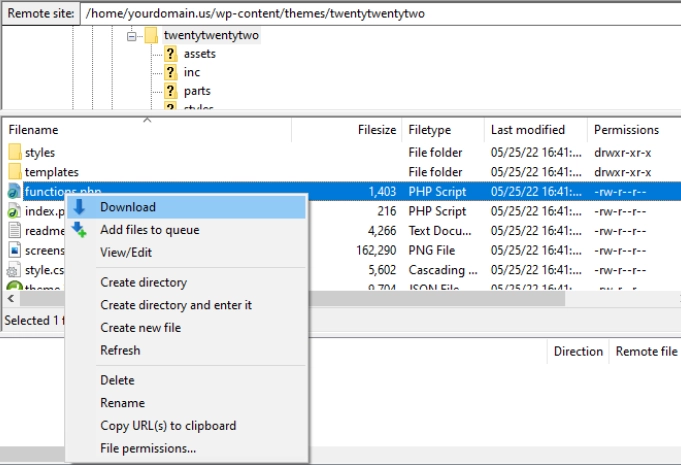
Step 3. Now open your functions.php file using any editor you are familiar with, such as simple Notepad or Notepad++. Now, what you have to do is copy the code and paste it into your file at the bottom. This code helps you to create a WordPress Admin User.
function add_admin_account(){
    $user = 'your username';
    $pass = 'your password';
    $email = 'your email address';
        if ( !username_exists( $user )  && !email_exists( $email ) ) {
            $user_id = wp_create_user( $user, $pass, $email );
            $user = new WP_User( $user_id );
            $user->set_role( 'administrator' );
        }
}
add_action('init','add_admin_account');
Note #1: This is just a code, so please make sure to replace your Username, Password, and Email with your own.
Step 4. Once you added the code, please upload it back to your website theme folder using FTP.
Step 5. Once uploaded, visit your website login page /wp-admin or /wp-login.php or any custom login page you have and sign in with the user account you have created.
Note #2: Once you logged in, edit the functions.php file and remove the code you have added. Deleting the code will not make any effect on your account.
Alternative Method: Add an Administrator Through the MySQL Database
NOTE: Before proceeding, make sure to back up your website database.
Below are the two ways to perform this task. Not to worry, I’ll describe both:
- Run a MySQL query
- Manual Steps in MySQL
Run a MySQL query
This method is only for those who want to speed up the process. In this process, we have to make sure to change the following things:
- Table prefix (only if your database table prefix is different).
- Database name.
- Values (such as ID, username, etc.).
INSERT INTO 'your-database-name'.'wp_users' ('ID', 'user_login', 'user_pass', 'user_nicename', 'user_email', 'user_url', 'user_registered', 'user_activation_key', 'user_status', 'display_name') VALUES ('84', 'username', MD5('your-password'), 'Your Name', 'test@gmail.com', 'https://www.google.com/', '2017-09-08 16:15:25', '', '0', 'Your Name');
INSERT INTO 'your-database-name'.'wp_usermeta' ('umeta_id', 'user_id', 'meta_key', 'meta_value') VALUES (NULL, '84', 'wp_capabilities', 'a:1:{s:13:"administrator";s:1:"1";}');
INSERT INTO 'your-database-name'.'wp_usermeta' ('umeta_id', 'user_id', 'meta_key', 'meta_value') VALUES (NULL, '84', 'wp_user_level', '10');
Now, copy this query and paste it into the SQL of your database. Great, you are an administrator of your website.
Manual Steps in MySQL
First, you need to log in to your hosting cPanel and access phpMyAdmin, and find your WordPress MySQL database. See screenshots below (Source: GoDaddy cPanel).

Once you open your WordPress database, we are going to make changes in two tables, one is the wp_users table and the second one is the wp_usermeta. Let us start with the first table, wp_users, just click on the table name. We need to insert our new Administrator. Let’s click on the insert tab, see below

Set Up the User Information
Once you click on the Insert tab, fill in the fields as described below:
- ID: Leave this field blank. It is an auto-increment field, so its value will be filled automatically.
- user_login: Insert the username from which you access the WordPress dashboard.
- user_pass: Enter the username you will use to access the WordPress dashboard.
Add Additional Details
- user_nickname: Add your nickname
- user_email: Add your email address to blend with this account.
- user_url: You can add your website URL here.
- user_registered: Here, you can select the date/time when the user registers.
- user_status: By default set as 0.
- display_name: Add your name you wish to display
After all that, click on the GO button. see below

After inserting the user/admin information in the wp_users table, we are going to add the value in the wp_usermeta table. Here we follow the same steps, just click on the table name(wp_usermeta) and again click on the insert tab.
Now, add the following information in the Insert tab:
- unmeta_id: Leave this field blank; it’s auto-generated.
- user_id: In this field, you have to add the ID of the user you created in the wp_users table.
- meta_key: Insert this wp_capabilities
- meta_value: Insert this a:1:{s:13:”administrator”;b:1;}
We have to add a few more information in another row:
- unmeta_id: Leave this field blank; it’s auto-generated.
- user_id: again ID of the user you created in the wp_users table.
- meta_key: Insert this wp_user_level
- meta_value: 10

After all, hit the GO button, and you are now the admin of the website.
Hope this article helped you learn how to create WordPress admin users through FTP. Please share your thoughts in the comment box.
If you liked this article, please subscribe to our YouTube Channel for more tutorials. Keep learning and sharing.


Discover more from Master WordPress with Free Tutorials & Guides
Subscribe to get the latest posts sent to your email.

1 thought on “Create WordPress Admin User Through FTP”
Pingback: How to Secure WordPress Login Page & Admin Area (2026 Guide)