

Do you ever feel like your email signature lacks personality or doesn’t reflect your brand? Have you designed your own signature in HTML format, but don’t know how to add it to your Gmail signature? If so, you’ve come to the right place!
What You'll Learn
Here is a simplified guide on how to add an HTML signature to your Gmail account:
Step 1: Install the Designmodo Chrome extension
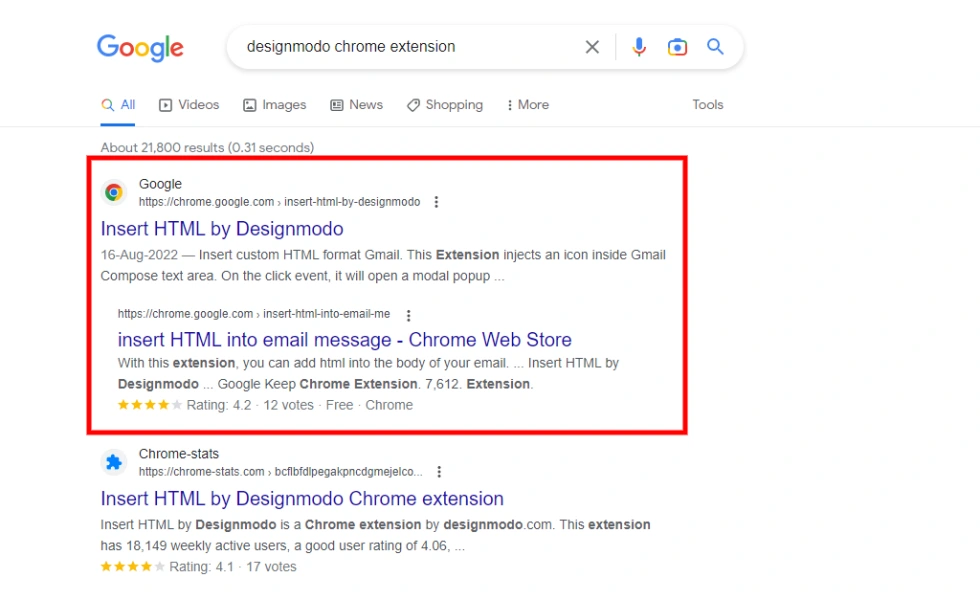
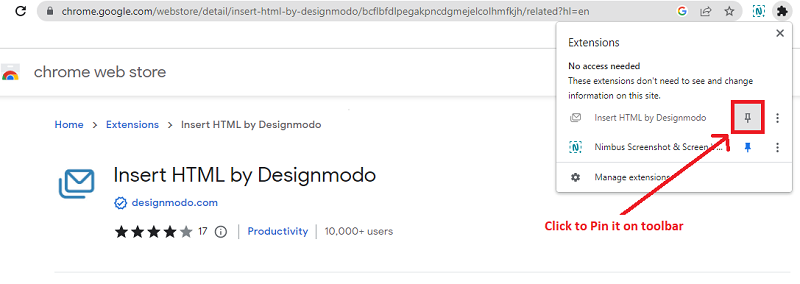
First, install & activate the Designmodo Chrome extension on your browser, and Pin it. See the screenshots below.
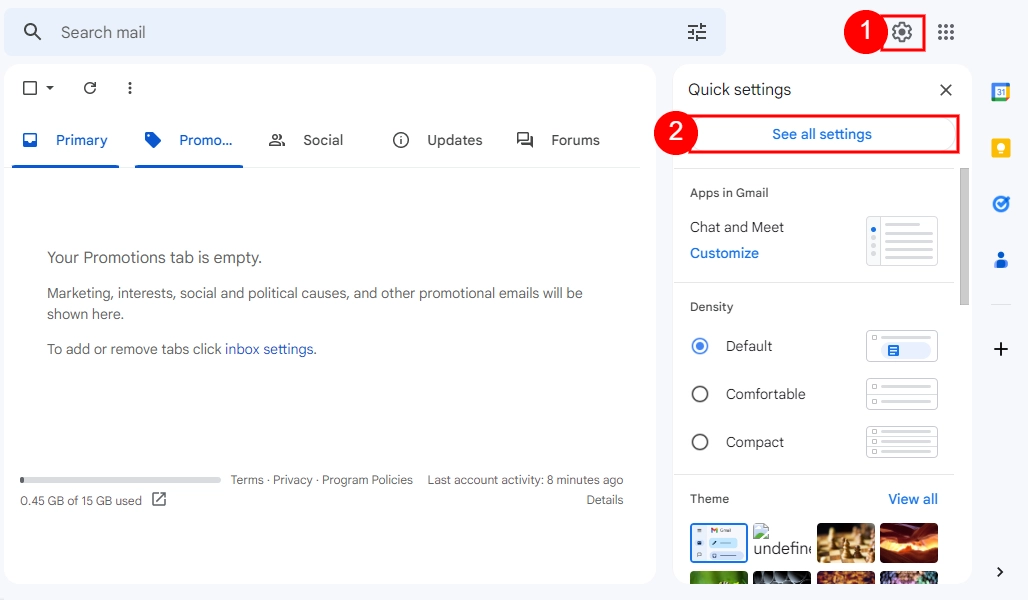
Step 2: Log in to Gmail Account
First, go to the Google Workspace and enter your username and password to access your account. Once logged in, click on the gear icon in the top-right corner of the screen. Then, from the drop-down menu, select “See all settings.” As a result, you will be taken to the Gmail settings page. See the screenshot below.
Step 3: Find the Signature Section
First, scroll down the settings page until you find the “Signature” section. Here, you’ll see a text box where you can create your signature.
Step 4: Paste Your HTML Signature into the Gmail Text Box
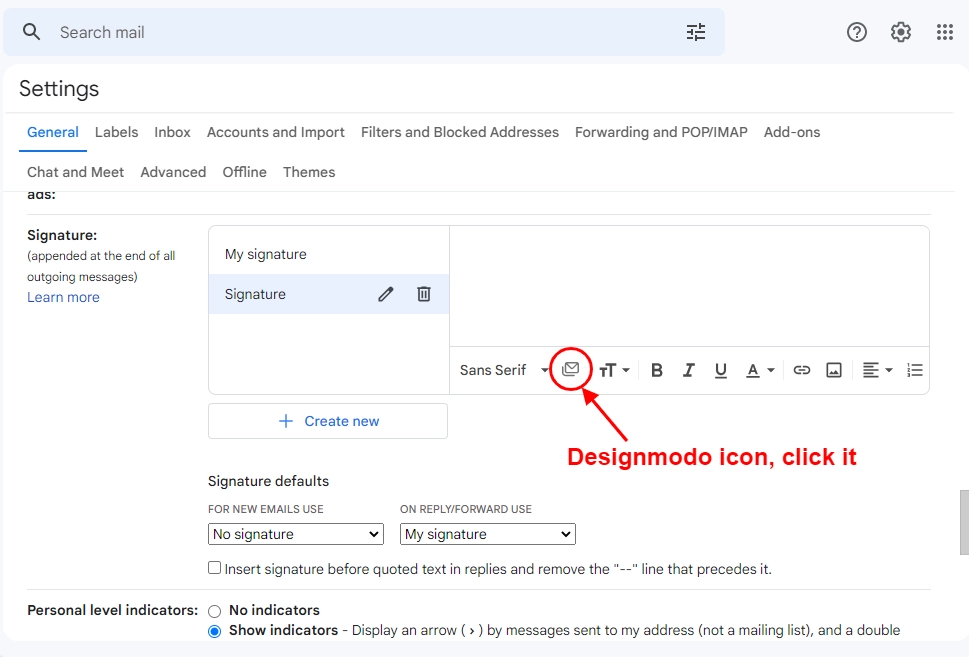
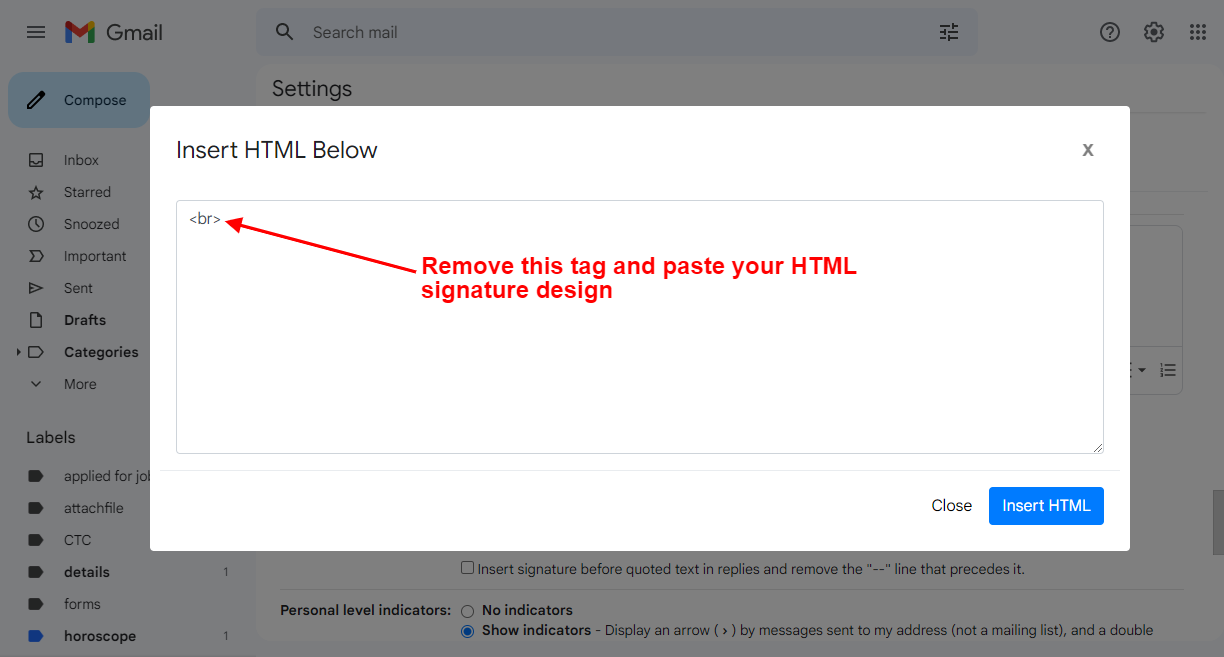
Next, click the “Create new” button if you haven’t created a signature before. Once you’ve done that, a Designmodo icon in the form of an envelope will become visible on the textbox. Click on the icon, and a pop-up will appear displaying the HTML textbox. Finally, you can then paste the HTML code for your signature into this box. See the screenshot below.
Step 5: Save Your Signature
Once you’ve added your HTML code, click on “Save Changes” at the bottom of the page. Your new HTML signature will now be automatically included in all your outgoing emails.
Our comprehensive video tutorial on YouTube is available for you to watch and learn how to add an HTML signature to your Gmail account.
In summary, adding an HTML signature to Gmail is easy and requires only a few steps. So, why not give it a go and let us know how it works for you? If you found this article helpful, please share your feedback in the comments and consider following us for more content.
Discover more from Master WordPress with Free Tutorials & Guides
Subscribe to get the latest posts sent to your email.
