
If you want a WordPress site that reaches beyond one language market, translation stopped being optional a while ago; it’s now table stakes. A well-built multilingual site improves user experience and can meaningfully lift your search visibility in the countries you’re targeting. That’s the gap TranslatePress is built to fill, and this guide walks through setup, SEO configuration, pricing, and how it stacks up against the alternatives.
What You'll Learn
What Is TranslatePress?
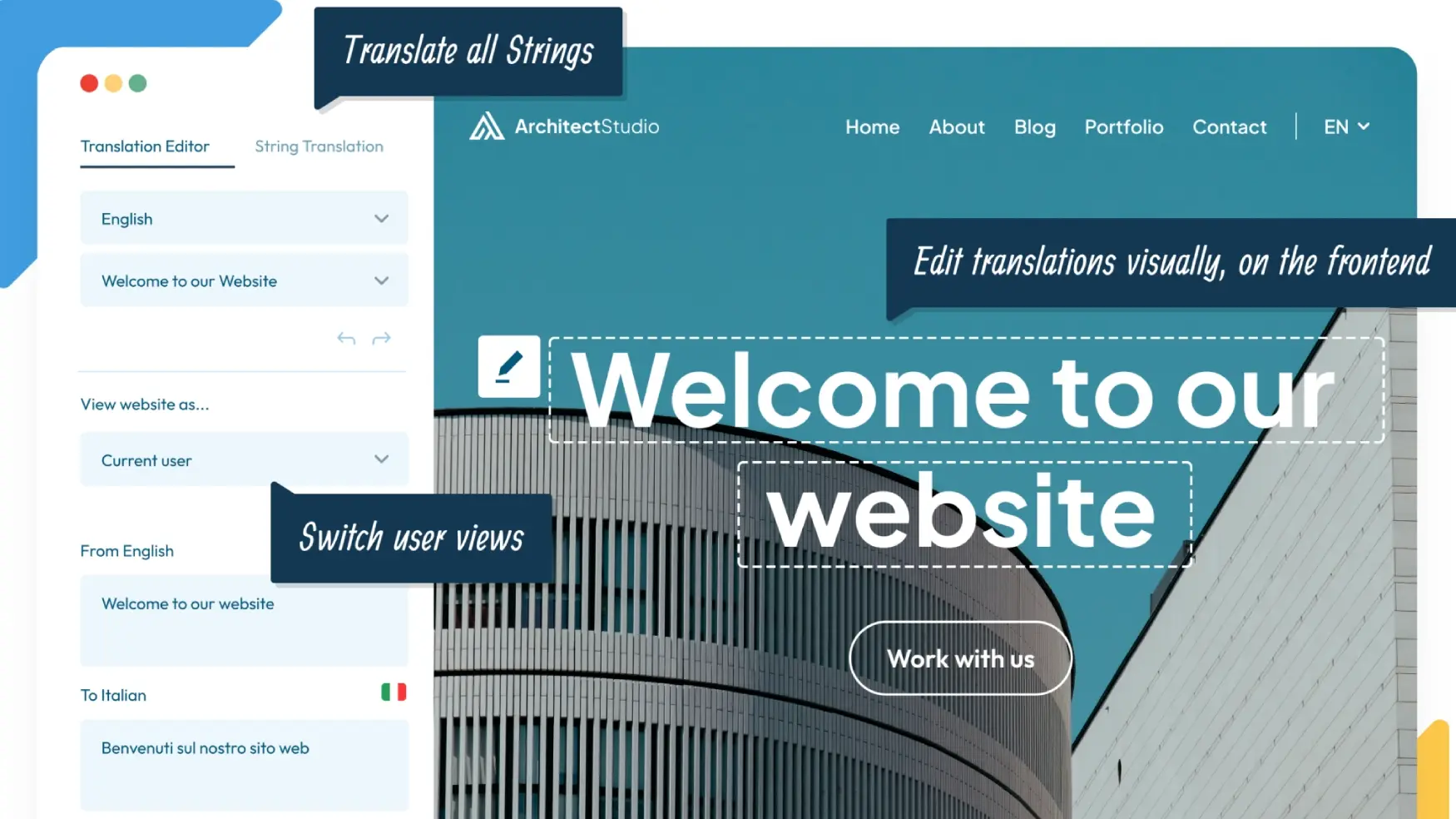
TranslatePress is a WordPress translation plugin that lets you translate your entire site directly from the front end. Unlike editor-in-the-backend tools, it shows a live visual preview while you translate text, images, menus, and even WooCommerce products.
- Translate content directly from the front end of your site, with a live preview of every change
- Supports both manual and automatic translation (Google Translate, DeepL, Microsoft Translator, and TranslatePress AI)
- SEO-friendly translation of slugs, meta titles, descriptions, and image ALT tags via the SEO Pack add-on
- Works with WooCommerce, most page builders (Elementor, Divi, Gutenberg), and custom themes
- Supports 132+ languages, with unlimited languages on paid plans
Why Choose TranslatePress Over Other Translation Plugins?
WPML and Polylang are the two names you’ll hear most often as alternatives. Here’s where TranslatePress tends to pull ahead:
- Ease of use: a front-end visual editor that non-technical site owners can pick up in minutes
- SEO depth: translated URL slugs, meta titles, meta descriptions, and image ALT text out of the box with the SEO Pack
- Performance: lighter footprint than WPML, which is known to add overhead on larger sites
- Compatibility: tested against Elementor, Divi, Gutenberg, and WooCommerce
Step 1: Install and Set Up TranslatePress
- Go to Plugins → Add New in your WordPress dashboard
- Search for TranslatePress
- Install and activate the plugin
- Go to Settings → TranslatePress
- Choose your default language and add the languages you want to translate into
That’s the entire setup you’re ready to start translating.
Step 2: Translating Content with the Front-End Editor
With TranslatePress, translation happens directly on your live pages:
- Hover over any text you want to translate
- Enter your translation in the sidebar panel that appears
- Save and preview the change instantly, in context
This works across pages, posts, menus, widgets, WooCommerce products, and custom post types you’re never editing blind in a separate string table.
Step 3: SEO Optimization with TranslatePress
The SEO Pack add-on is where TranslatePress earns its keep for multilingual SEO specifically:
- Meta titles & descriptions: translated per language, so each version can rank on its own terms
- Localized URL slugs: a French visitor sees a French URL, not a query parameter
- Image ALT tags: translated for image search visibility in each language
- Multilingual sitemaps: integrates with Yoast SEO, Rank Math, and SEOPress
- Hreflang tags: tell Google which language/region version to serve, which helps avoid duplicate-content issues across language versions
Step 4: Translate WooCommerce with TranslatePress
For stores, TranslatePress covers the parts of the purchase journey that actually affect conversion:
- Product titles and descriptions
- Categories and product attributes
- Checkout pages
- Automated customer emails
That’s what turns “translated site” into an actual usable shopping experience for international customers, rather than a homepage in one language and checkout in another.
TranslatePress Pricing: Free vs Premium
TranslatePress ships a free version on WordPress.org that covers one additional language and the core front-end editor, enough to evaluate the workflow before paying anything.
Premium licenses are billed annually and unlock the SEO Pack, unlimited languages, DeepL/AI integration, and WooCommerce translation. As of 2026, published pricing runs roughly:
| Plan | Approx. Price | Best For |
|---|---|---|
| Personal | ~€99/year | Single sites, one extra language |
| Business | ~€199/year | Multiple languages, SEO Pack, WooCommerce |
| Developer | ~€349/year | Agencies, unlimited sites, automatic language detection |
Paid plans also include a set number of AI translation words for the built-in TranslatePress AI engine; additional word packs can be purchased separately if you run through your allotment. Pricing and included AI credits change periodically, so it’s worth checking the official pricing page before you commit to a tier.
TranslatePress vs WPML vs Weglot vs Polylang
These four cover most of the WordPress translation market, and each optimizes for a different situation:
| Feature | TranslatePress | WPML | Weglot | Polylang |
|---|---|---|---|---|
| Ease of use | ✅ Front-end visual editor | ❌ Complex backend | ✅ Very simple setup | ⚠️ Moderate learning curve |
| SEO support | ✅ Strong (SEO Pack) | ✅ Strong, mature | ✅ Strong, automatic | ⚠️ Basic, needs add-ons |
| Performance | ✅ Lightweight | ❌ Can slow larger sites | ⚠️ Relies on external API | ✅ Lightweight |
| Pricing model | Annual license, self-hosted data | Annual license, higher entry cost | Monthly/annual, usage-based tiers | Free core + paid add-ons |
| Best for | Front-end editing, WooCommerce stores | Complex enterprise multilingual sites | Fast automatic setup, agencies | Budget-conscious, simpler sites |
If your priority is a visual, front-end-first editing experience with strong native SEO controls, TranslatePress is usually the better fit. If you’re managing a large enterprise site with a dedicated translation team, WPML’s more granular backend workflow can be worth the added complexity. Weglot trades some control for near-zero setup time, and Polylang is the budget-friendly option for smaller sites that don’t need the SEO Pack’s depth.
Best Practices for Using TranslatePress in 2026
- Start with automatic translation to get full-site coverage fast, then refine manually where accuracy matters most (product pages, legal text)
- Translate slugs and metadata, not just visible text; this is where a lot of the SEO value actually sits
- Enable hreflang tags from day one to avoid duplicate-content penalties across language versions
- Check site speed after enabling translations, especially with automatic translation running
- Use the actual search terms locals use rather than literal translations. A direct translation of a keyword often isn’t what people search for in that market
Final Thoughts
If growing internationally and improving multilingual SEO is the goal, TranslatePress is one of the stronger WordPress translation plugins available in 2026 for teams that want front-end control without an enterprise-level learning curve. It’s SEO-ready out of the box and works with most themes and page builders, whether you’re running a blog, a business site, or a WooCommerce store.
Frequently Asked Questions About TranslatePress
1. What is the TranslatePress WordPress plugin?
It’s a WordPress translation plugin that lets you translate your website directly from the front end, with support for both manual and automatic translation.
2. Is TranslatePress SEO-friendly?
Yes, with the SEO Pack add-on, you can translate meta titles, descriptions, URL slugs, and image ALT tags, plus set up hreflang tags and integrate with Yoast SEO, Rank Math, and SEOPress.
3. Can I use TranslatePress with WooCommerce?
Yes, product titles, descriptions, categories, checkout pages, and customer emails can all be translated for a complete multilingual shopping experience.
4. How do I translate a WordPress website with TranslatePress?
Install the plugin, set your default and additional languages, then use the front-end visual editor to translate content directly on the live site. Automatic translation via Google Translate, DeepL, or TranslatePress AI is available if you want a first-pass draft to edit from.
5. TranslatePress vs WPML: Which is better?
Both are capable plugins. TranslatePress is generally easier to use thanks to its front-end editor and lighter footprint. WPML offers deeper customization for complex, large-scale sites but comes with a steeper learning curve. For most small-to-mid-size sites, TranslatePress hits a better balance of ease of use and SEO support.
6. Does TranslatePress support automatic translation?
Yes, it integrates with Google Translate, DeepL, Microsoft Translator, and its own TranslatePress AI engine. Most sites start with machine translation and refine manually afterward.
7. Is TranslatePress free or paid?
Both. The free version covers basic single-language translation. Premium plans (Personal, Business, Developer) unlock the SEO Pack, unlimited languages, AI/DeepL integration, and WooCommerce support.
Get Started
Ready to make your WordPress site multilingual? Install TranslatePress and start building out your first additional language today.
Discover more from Master WordPress with Free Tutorials & Guides
Subscribe to get the latest posts sent to your email.